This post details the Customisation Import feature in the JM Dataverse Toolbelt
The feature allows entity and field metadata to be managed in a spreadsheet and created/updated in bulk
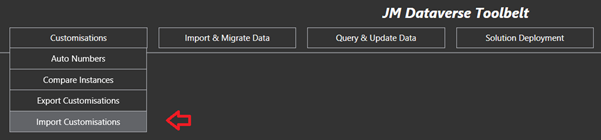
An Excel Template containing the required sheets and sample import data can be downloaded by clicking the “Get Import Template” button on the entry form. This will open an Excel file with similar tabs to the screenshot below
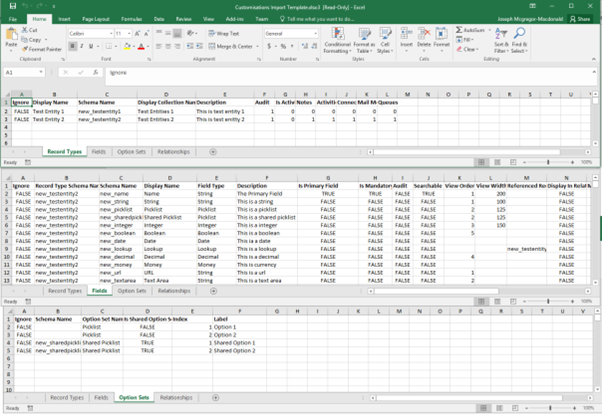
- The Record Types tab contains a row for each entity type to be imported
- The Fields tab contains a row for each field/attribute to be imported*. Note that some of the fields are contextual, for example the “Reference Record Type” column is only relevant for Lookup fields, and the Max Length column is only relevant for text fields
- The Option Sets tab contains picklist option key/labels for either shared or field specific option sets
- The Relationships tab (not shown) contains many to many relationship definitions. I have rarely used this compared to the other import options
*the Fields tab also contains View Order and View Width columns which may be used to set columns in system views for the relevant entity
Once customisations have been defined in the spreadsheet and saved the import may be triggered by entering required details into the form then clicking Import
- Selection of the spreadsheet containing the customisations
- Optionally select to add the components to a solution in the CRM instance (note this does not currently add at the sub-component level. e.g. if there is a field in the case entity included in the import, then all case assets will be added to the solution
- Select which component types in to import. e.g this import may only want to include fields or options sets in the import

The active connection at the time the entry form was opened will be used for the import. Configuring the connection is detailed in the post here
The import process could take a while depending on the volume and type of cutomisations. Multiple publishes are done as required by the app during the import
If any errors are thrown during the import these will be shown in a grid when completed
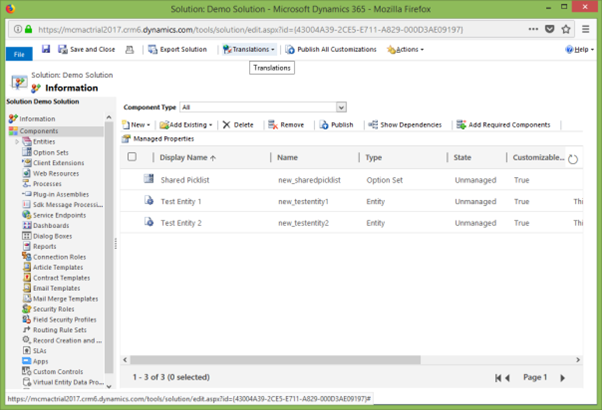
This screenshot show the solution in CRM after an import of the Excel template unchanged. As shown the various entities and shared option set have been added into the solution
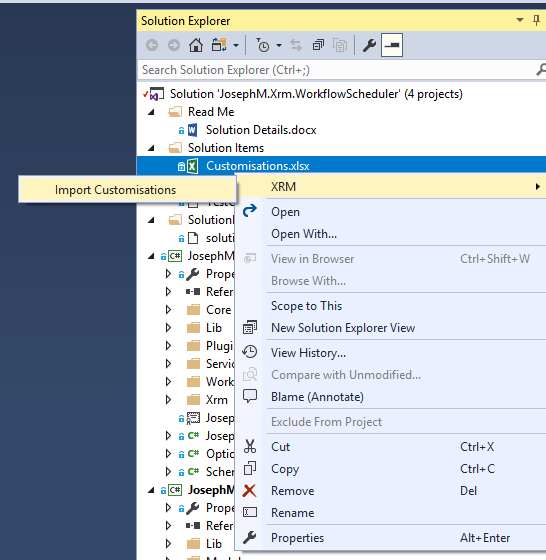
Be aware this feature is also available as part of my Visual Studio extension (detailed here)
 JM SOFTWARE