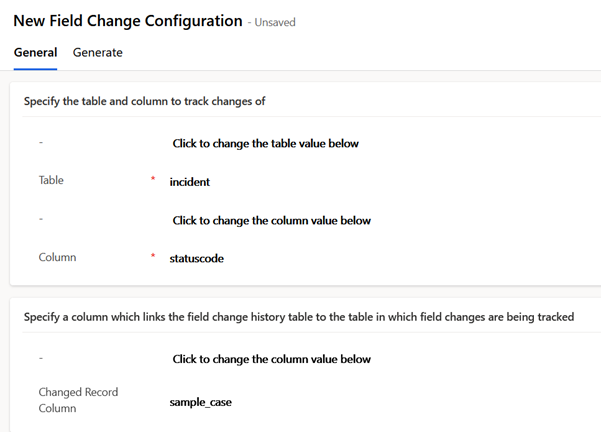
This page details how to configure the Field Change History solution to capture the changes made to a specific field. The outcome is a Field Change Configuration record, each of which Defines a column for the solution to capture change to
At the end of this page example for several configuration scenarios are provided
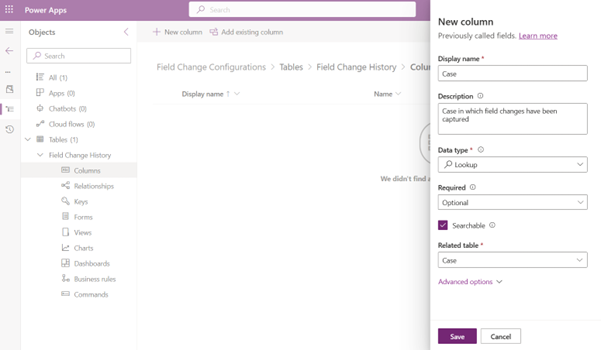
Create Lookup Field in Field Change History Table
To link Field Change History records to a table in which changes are being tracked, a lookup column needs to be created on the Field Change History table referencing that it.
This step is optional, but without it Field Change History records cannot be viewed in or queried against the table which they are tracking.
Creating a lookup column is detailed in the Microsoft article: Add a Lookup Column
When creating this lookup column:
- The table to create the lookup column in is named “Field Change History”.
- The related table is the table containing the column to track changes of.
This screenshot shows creation of an example lookup column from the Field Change History table where changes to case records will be tracked.
Create Field Change Configuration Record
To start tracking changes to a column a Field Change Configuration record needs to be created. Each Field Change Configuration record contains detail of a table column being tracked.
When entered into Field Change Configuration records, the solution synchronises the configuration into SDK Message Processing Steps, which will trigger plugin code to create and update the Field Change History records.
These steps detail creating a Field Change Configuration record to track changes to a specific column. To create a Field Change Configuration record for each specific column for which you want to capture changes:
- Login into the Dataverse instance as a System Administrator.
- Open the App named “JM Dataverse Toolbelt”.
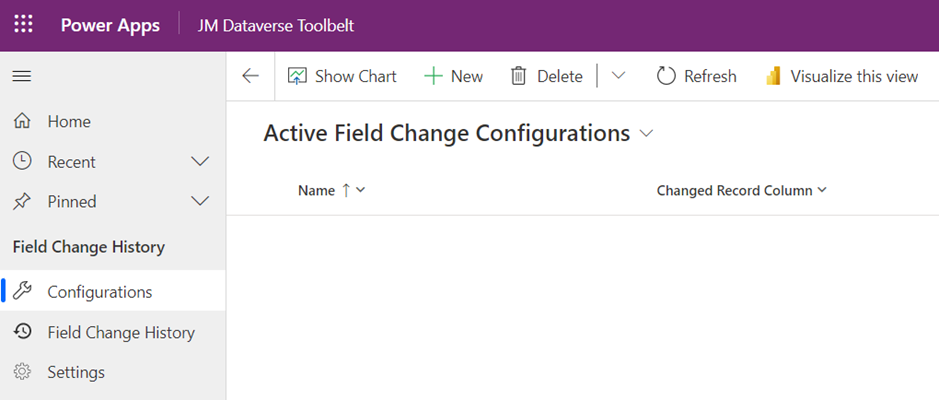
- In the left-hand menu Field Change History group click to view “Configurations”, then click “New” on the top ribbon.
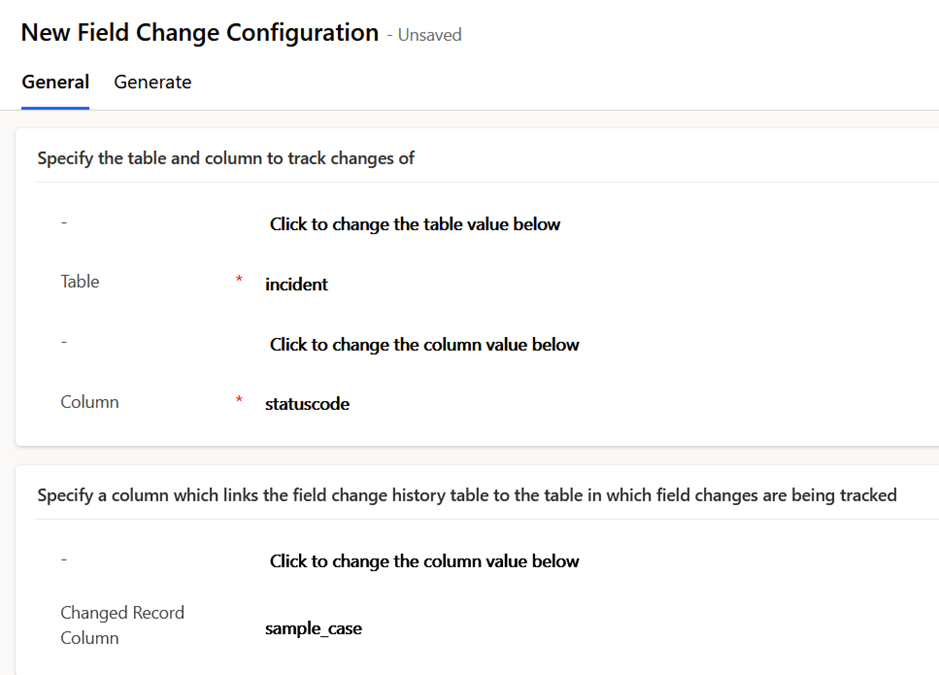
- Enter details for the column you want to track changes to and hit Save. On save, the solution will configure plugins to capture the field changes by configuring SDK Message Processing Steps to trigger on all required platform events.
The table below describes each field in the Field Change Configuration form.
| Column Name | Description |
| Table | Logical name of the table containing the column to be tracked |
| Column | Logical name of the column to be tracked |
| Changed Record Column | Logical name of a lookup column which links the field change history table to the table above in which column changes are to be tracked |
| History Filter | A FetchXml filter string which limits the states during which field change history should be captured. For example the following filter specifies to only capture while the record is active <filter type=”and”> <condition attribute=”statecode” operator=”eq” value=”0″ /> </filter> |
| Lookup Value Column | If column being tracked is of type lookup, then logical name of a lookup column which links the field change history table to the same table(s) which the tracked column links to |
Example 1: Changes to Case Status Reason
| Column Name | Value | Notes |
| Table | incident | Logical name of the Case table |
| Column | ownerid | Logical name of the Status Reason column |
| Changed Record Column | sample_case | Assumes a lookup column with this logical name has been created on the field change history table referencing the case table |
| History Filter | N/A (leave empty) | |
| Lookup Value Column | N/A (leave empty) |
Example 2: Changes to Account Primary Contact
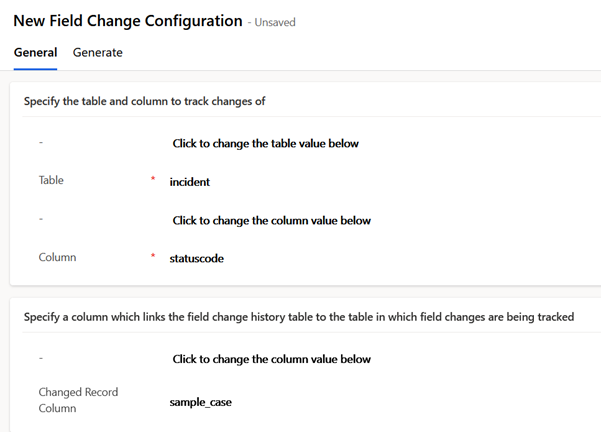
| Column Name | Value | Notes |
| Table | account | Logical name of the Account table |
| Column | primarycontactid | Logical name of the Status Reason column |
| Changed Record Column | sample_account | Assumes a lookup column with this logical name has been created on the field change history table referencing the account table |
| History Filter | N/A (leave empty) | |
| Lookup Value Column | sample_contact | Assumes a lookup column with this logical name has been created on the field change history table referencing the contact table |
Example 3: Changes to Case Owner While Active
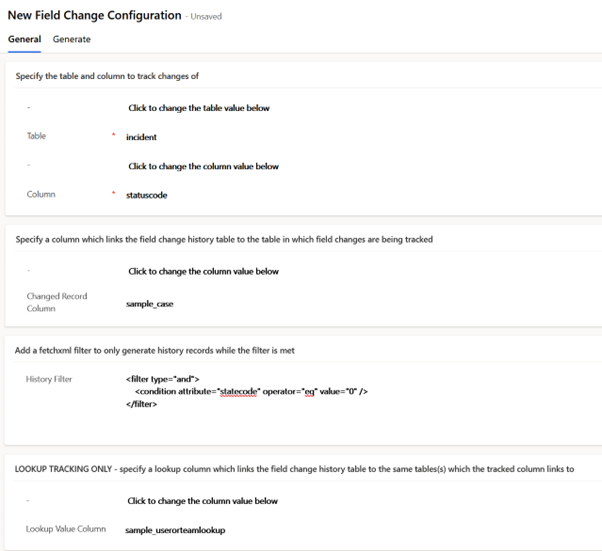
| Column Name | Value | Notes |
| Table | incident | Logical name of the Case table |
| Column | statuscode | Logical name of the Status Reason column |
| Changed Record Column | sample_case | Assumes a lookup column with this logical name has been created on the field change history table referencing the case table |
| History Filter | <filter type=”and”> <condition attribute=”statecode” operator=”eq” value=”0″ /> </filter> | FetchXml condition to only capture changes while the case is in an active state |
| Lookup Value Column | sample_userorteam | Assumes a polymorphic lookup has been created with this logical name on the field change history table which references both the user and team types |
 JM SOFTWARE