The Dev Kit allows multiple instance connections to be saved in the package settings for a visual studio solution
The ‘Active’ connection (generally a development instance) will be used for the majority of features including code generation, code deployment, querying and updating of data, and creating release packages
Other connections (test, UAT or production instances) can also be used to deploy release package into
Package Settings are saved per user by prefixing the settings file with usernames. This means connections are saved and encrypted separately for each user of the solution. The screenshot below shows the location of these saved settings within the visual studio solution

Accessing Saved Connections
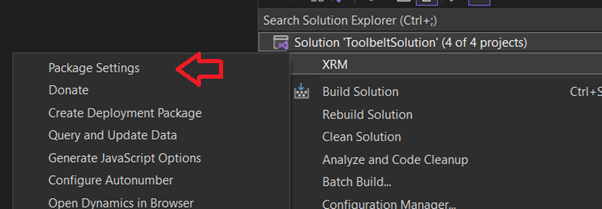
The screenshot below shows the menu location to access and create saved connections. Right click the solution in solution explorer and click XRM -> Package Settings in the flyout menu
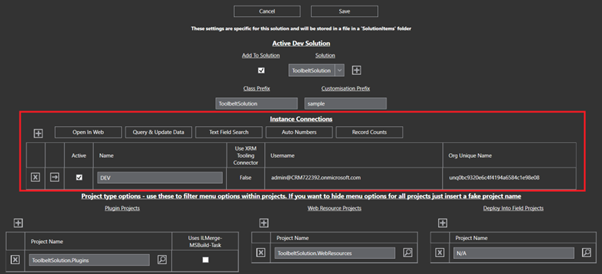
In the Package Settings form the Instance Connections grid list the saved connections
Create a New Connection
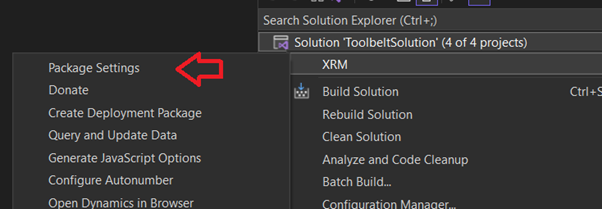
The screenshot below shows the menu location to access and create saved connections. Right click the solution in solution explorer and click XRM -> Package Settings in the flyout menu
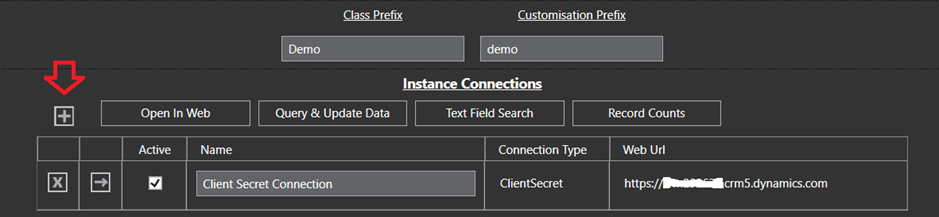
To add a new connection, click the + button at the top left of the Instance Connections grid
When creating a connection there are 2 options
- Create a connection using the Microsoft SDK Tooling Connector
- Create a connection with a client id and secret saved and encrypted by the app
Create a Connection using the SDK Tooling Connector
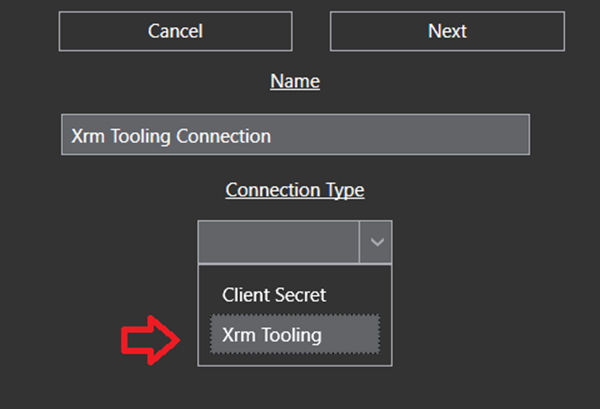
To connect using the SDK connector select the Connection Type of Xrm Tooling.
This will pop up a login dialog which is part of the Microsoft SDK assemblies. If connecting to a Microsoft online instance you’ll need to click Office 365 and Show Advanced, then enter username and password before hitting Login. This will then progress through the login including any subsequent MFA process which is required.
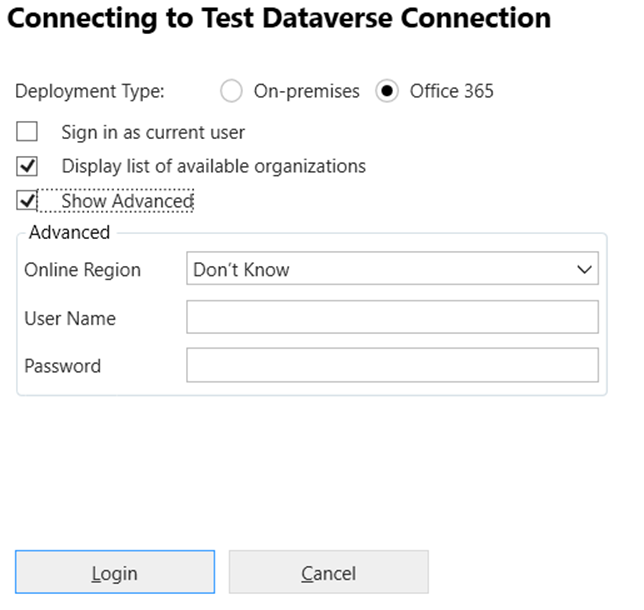
This dialog is managed by Microsoft assemblies using the SDK control documented at the link below
https://learn.microsoft.com/en-us/power-apps/developer/data-platform/xrm-tooling/use-xrm-tooling-common-login-control-client-applications?WT.mc_id=DX-MVP-5004940
Once the dialog is completed click Next to commit and save to your saved connections
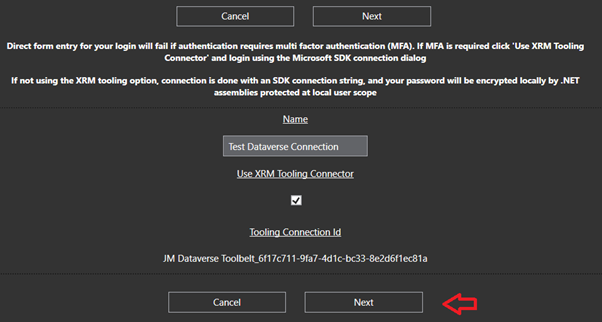
This new connection will be added to the Instance Connections grid in the Package Settings
Note no connections added to the instance connections grid will be saved until the Save button is clicked. Click save in the Package settings form to ensure the new connection is persisted to the saved settings and set active
Create a Client / Secret connection for an application user
To create a client secret connection saved and encrypted by the app, select the Connection Type as Client SecretIn this case client ID and client secret along with the instance web URL are entered directly into the connection form.
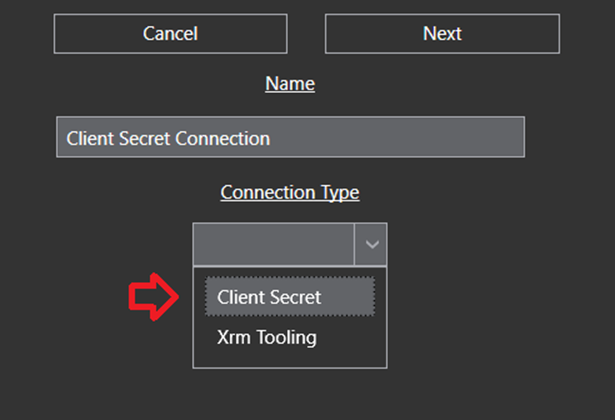
In this case client ID and client secret along with the instance web URL are entered directly into the connection form.

Once all details are entered click Next to commit and save to your saved connections. This new connection will be added to the Instance Connections grid in the Package Settings
Note no connections added to the instance connections grid will be saved until the Save button is clicked. Click save in the Package settings form to ensure the new connection is persisted to the saved settings and set active

 JM SOFTWARE