This post is part of a series documenting features of the workflow scheduler solution. For details of the workflow scheduler solution click here
The View Notification type sends an email when a system view is returning results. The idea is the view will define records which need to be actioned by users, and this feature will notify them. The feature can also be configured to group the notifications by record owner or send all results to a specific email address in a queue record
I’ll go through an example sending daily notifications of cases which have passed their resolve by date
To do this we need to perform 2 tasks
- Create a system view for overdue cases
- Create a workflow task to run every morning polling the view for overdue cases
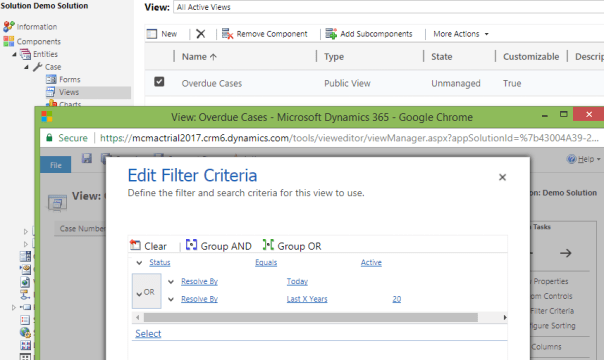
This screenshot displays the a system view which I have created for this scenario
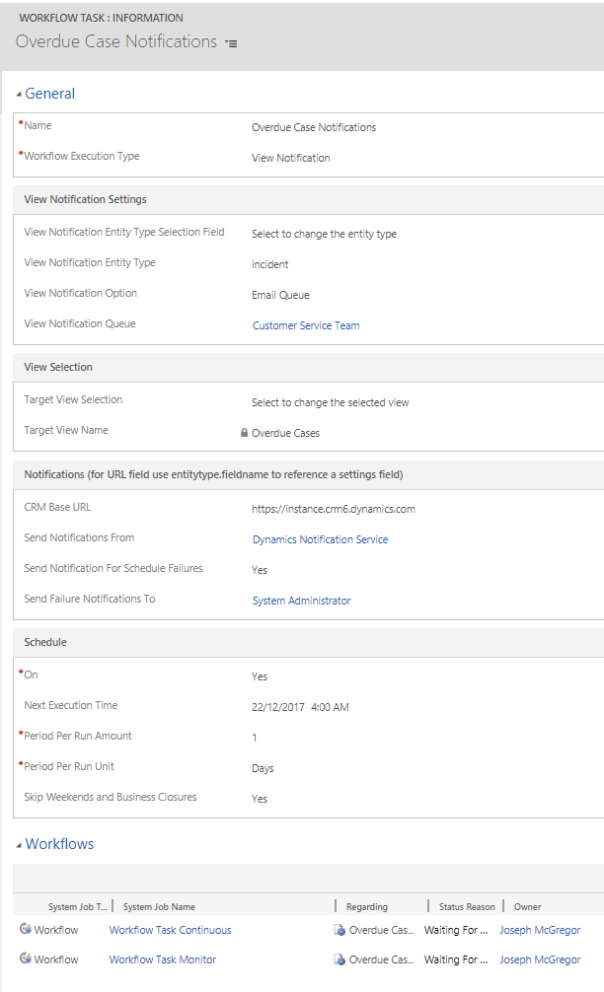
Now I’ve created the view I need to create the workflow task for the notification. The screenshot below displays this example workflow task
- Workflow Execution Type = View Notification
- View Notification Type = Email Queue – with the specific Queue then selected
- View Notification Entity Type = incident – with the target view then selected
- CRM Base URL is used to populate hyperlinks in the notification emails. This must be populated for the notification email to include hyperlinks to open records. Either put the explicit URL in, or if there is a settings entity with a field containing the URL this may be reference by entering a reference in the pattern “new_settingsentitytype.new_urlfield”. This is sometimes a better option when deploying multiple workflow tasks between non-production and production environments
- In the Schedule section it is then configured to run once per day
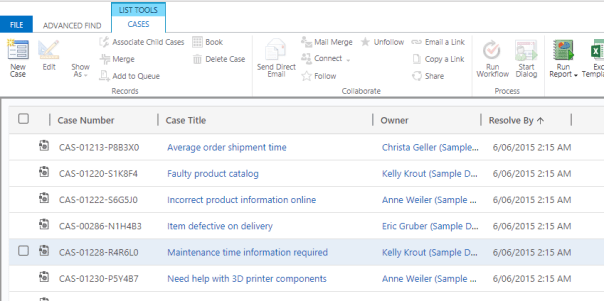
I’ll now verify the notification email. This view shows sample Cases returned by my view which I expect to be included in the notification email
To immediately trigger the process to run workflow I open the workflow task record and set the “Next Execution Time” to any date time in the past
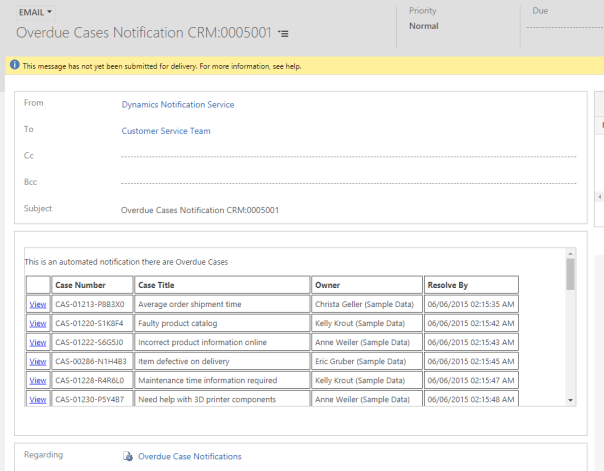
After a few moments the email is created as shown in this advanced find result

Opening the email ee the contents include a table listing the overdue cases along with a hyperlink to open each of the offending cases
Note there is the option to send an email to each owning user, rather than sending everything to a single queue email address. So we could for instance have adjusted this example to send the emails to owners of these case records
And with that the work is done for this example


 JM SOFTWARE