And now for something completely different
This article details how to code a DataGrid in XAML / WPF to dynamically generate columns with different data entry types
This problem took me a while to gather the different aspects of when attempting to minimise User Interface code in a WPF framework. Due to this a basic sample could be beneficial to others needing to solve the same problem
Sample code referred to in this article is in GitHub here
Model
For this example I have created a basic type with an enumerable property. The enumerated type contains a string and boolean property for the purposes of having different data types
With MVVM, XAML code behind, and a bit of reflection we will have the User Interface generate a grid with the correct data entry types for the enumerated property. In this example the View and View Model will have no knowledge of these concrete data types so the theory is the pattern may be reused for grid data entry of any type
This screenshot shows the type I will use

ViewModel
Deciding the ViewModel classes just involves logically breaking down the Grid structure. A Grid has many Rows. A Row has many Fields which may be of a different type. These are the main classes we require
- DataGridViewModel – this is the type we will bind the DataGrid. It contains an enumerable of GridRowViewModel
- GridRowViewModel – this is the type bound for each row in the DataGrid. It contains an enumerable of FieldViewModelBase
- FieldViewModelBase – this is the base type bound to each column
- StringFieldViewModel – this is the concrete type for a string property bound to a string column
- BooleanFieldViewModel – this is the concrete type for a boolean property bound to a boolean column
The main parts of the implementation of these can be summed up as
- Inject an object instance into the DataGridViewModel
- Using reflection populate the Grid rows with each object in the enumerable property
public DataGridViewModel(object instance, string propertyForGrid)
{
    Instance = instance;
    PropertyForGrid = propertyForGrid;

    Rows = new ObservableCollection<GridRowViewModel>();
    //read the enumerable property and load it into the Rows
    var propertyValue = Instance
        .GetType()
        .GetProperty(propertyForGrid)
        .GetGetMethod()
        .Invoke(Instance, new object[0]);
    var enumerable = ((IEnumerable)propertyValue);
    foreach (var item in enumerable)
    {
        Rows.Add(new GridRowViewModel(item));
    }

    AddButtonCommand = new MyCommand(AddRow);
}
- In each Grid Row object use reflection to determine the property types of the object. For each property create a new instance of the correct FieldViewModel
private void CreateFieldViewModels()
{
    var fields = new ObservableCollection<FieldViewModelBase>();
    var type = Instance.GetType();
    foreach(var property in type.GetProperties())
    {
        if(property.PropertyType == typeof(bool))
        {
            fields.Add(new BooleanFieldViewModel(property.Name, Instance));
        }
        else
        {
            fields.Add(new StringFieldViewModel(property.Name, Instance));
        }
    }
    _fields = fields;
}
- The GridRow also has an indexer property. This is required for the cell columns to bind to the FieldViewModel for their property (e.g. Row[“PropertyName”])
public FieldViewModelBase this[string fieldName]
{
    get
    {
        if (Fields.Any(gr => gr.PropertyName == fieldName))
            return Fields.First(gr => gr.PropertyName == fieldName);
        return null;
    }
    set { throw new NotImplementedException(); }
}
- Each FieldViewModel has a get/set property bound to the actual objects property value
public object ValueObject
{
    get
    {
        return Instance
            .GetType()
            .GetProperty(PropertyName)
            .GetGetMethod()
            .Invoke(Instance, new object[0]);
    }
    set
    {
        Instance
            .GetType()
            .GetProperty(PropertyName)
            .GetSetMethod()
            .Invoke(Instance, new object[] { value });
    }
}
For more detail see the source code
View
Okay so this is the guts of what this article is about. The 2 main components which I needed to solve this problem are
- Implementations of DataGridBoundColumn for each field type we require
- Some code behind to add these into the Columns property of a DataGrid bound to the relevant FieldViewModel of the GridRow
Each DataGridBoundColumn also needs to reference a user control which contains the xaml to display for that column type
These are the classes we require
- DynamicGrid- this is a user control containing the DataGrid. It binds to the DataGridViewModel. The DataGrid’s items are bound to the GridRowViewModel’s
- GridBooleanFieldView – this is a user control containing a checkbox bound to the BooleanFieldViewModel
- StringBooleanFieldView – this is a user control containing a textbox bound to the StringFieldViewModel
- GridBooleanColumn – this is an implementation of DataGridBoundColumn. It tells the grid to use GridBooleanFieldView for cells in that column
- StringBooleanColumn – this is an implementation of DataGridBoundColumn. It tells the grid to use GridStringFieldView for cells in that column
This is the DynamicGrid view. This binds to the DataGridViewModel. For simplicity I only have an add button and a DataGrid
<UserControl x:Class="SampleDynamicGridWithMultipleFieldTypes.View.DynamicGrid"
             xmlns="http://schemas.microsoft.com/winfx/2006/xaml/presentation"
             xmlns:d="http://schemas.microsoft.com/expression/blend/2008"
             xmlns:x="http://schemas.microsoft.com/winfx/2006/xaml"
             xmlns:mc="http://schemas.openxmlformats.org/markup-compatibility/2006"
             mc:Ignorable="d"
             d:DesignHeight="450" d:DesignWidth="800">
    <UserControl.Resources>
        <Style x:Key="CenterGridHeaderStyle" TargetType="DataGridColumnHeader">
            <Setter Property="HorizontalContentAlignment" Value="Center"/>
        </Style>
    </UserControl.Resources>
    <Grid>
        <Grid.RowDefinitions>
            <RowDefinition Height="Auto" />
            <RowDefinition Height="*" />
        </Grid.RowDefinitions>
        <Button
            HorizontalAlignment="Left"
            Width="100"
            Grid.Row="0"
            Command="{Binding AddButtonCommand}"
            >
            Add Row
        </Button>
        <DataGrid
            ColumnHeaderStyle="{StaticResource CenterGridHeaderStyle}"
            Grid.Row="1"
            Name="XamlDataGrid"
            ItemsSource="{Binding Rows}"
            CanUserAddRows="False"
            AutoGenerateColumns="False"
        >
        </DataGrid>
    </Grid>
</UserControl>
Generating the columns can be summed up as
- When the DataContext is set on the DynamicGrid run some code behind to populate the Columns on the DataGrid
- Bind each cell to the getter/setter of the row object’s relevant FieldViewModel property
private void DynamicGrid_DataContextChanged(object sender, DependencyPropertyChangedEventArgs e)
{
    if (ViewModel != null)
    {
        var mainType = ViewModel.Instance.GetType();
        var propertyForGrid = mainType.GetProperty(ViewModel.PropertyForGrid);
        var typeForGrid = propertyForGrid.PropertyType.GenericTypeArguments[0];
        //iterate each property in the type enumerated in the grid
        foreach (var gridColumnProperty in typeForGrid.GetProperties())
        {
            //Binding for the column to the property indexer in our GridRow
            var cellBinding = new Binding
            {
                Path = new PropertyPath(string.Concat("[", gridColumnProperty.Name, "]")),
                Mode = BindingMode.TwoWay
            };
            //Create the column for the type of property
            DataGridColumn dataGridField;
            if (gridColumnProperty.PropertyType == typeof(bool))
            {
                dataGridField = new GridBooleanColumn()
                {
                    Binding = cellBinding
                };
            }
            else
            {
                dataGridField = new GridStringColumn()
                {
                    Binding = cellBinding
                };
            }
            //Column header label & width
            dataGridField.Header = gridColumnProperty.Name;
            dataGridField.Width = new DataGridLength(200, DataGridLengthUnitType.Pixel);
            //Add to the column collection of the DataGrid
            XamlDataGrid.Columns.Add(dataGridField);
        }
        //Bind the ItemsSource of the DataGrid to our Rows
        var dataGridBinding = new Binding
        {
            Path = new PropertyPath(nameof(DataGridViewModel.Rows)),
            Mode = BindingMode.TwoWay
        };
        XamlDataGrid.SetBinding(ItemsControl.ItemsSourceProperty, dataGridBinding);
    }
}
- When a row is added create a new object of the relevant type and encapsulate it in a new GridRowViewModel. Add this object to the collection of grid rows, as well as the target objects enumerable
private void AddRow()
{
    var rowPropertyType = Instance
        .GetType()
        .GetProperty(PropertyForGrid)
        .PropertyType
        .GenericTypeArguments[0];
    var newInstanceForRow = Activator.CreateInstance(rowPropertyType);
    var gridRow = new GridRowViewModel(newInstanceForRow);
    Rows.Add(gridRow);

    RefreshGridRowsIntoObjectEnumerable(rowPropertyType);
}

private void RefreshGridRowsIntoObjectEnumerable(Type rowPropertyType)
{
    //this outputs an object of type object[]
    var rowInstances = Rows.Select(g => g.Instance).ToArray();
    //this casts the array above to our desired type
    var typedEnumerable = typeof(Enumerable)
        .GetMethod(nameof(Enumerable.Cast), new[] { typeof(IEnumerable) })
        .MakeGenericMethod(rowPropertyType)
        .Invoke(null, new object[] { rowInstances });
    //this forces enumeration of the cast array
    typedEnumerable = typeof(Enumerable)
        .GetMethod(nameof(Enumerable.ToArray))
        .MakeGenericMethod(rowPropertyType)
        .Invoke(null, new object[] { typedEnumerable });
    //now we have an enumerated array of the correct type
    //there will be no error setting it to the property on our target object
    Instance.GetType()
        .GetProperty(PropertyForGrid)
        .GetSetMethod()
        .Invoke(Instance, new[] { typedEnumerable });
}
Of course we also have the user controls for the fields. I won’t copy them in here as they are just a bound checkbox and textbox
For the purposes of this sample my MainWindow contains this
<Window x:Class="SampleDynamicGridWithMultipleFieldTypes.MainWindow"
        xmlns="http://schemas.microsoft.com/winfx/2006/xaml/presentation"
        xmlns:d="http://schemas.microsoft.com/expression/blend/2008"
        xmlns:x="http://schemas.microsoft.com/winfx/2006/xaml"
        xmlns:mc="http://schemas.openxmlformats.org/markup-compatibility/2006"
        xmlns:view="clr-namespace:SampleDynamicGridWithMultipleFieldTypes.View"
        mc:Ignorable="d"
        Title="MainWindow" Height="450" Width="800">
    <Grid>
        <view:DynamicGrid DataContext="{Binding}" />
    </Grid>
</Window>
And is initialised in code behind with a sample object to bind
    public partial class MainWindow : Window
    {
        public MainWindow()
        {
            InitializeComponent();
        }

        protected override void OnContentRendered(EventArgs e)
        {
            base.OnContentRendered(e);

            var myInstance = new MyDataGridType();
            myInstance.MyGridRows = new[]
            {
                new MyGridRowType() { MyStringField = "Initial Row 1" },
                new MyGridRowType() { MyStringField = "Initial Row 2", MyBooleanField = true },
                new MyGridRowType() { MyStringField = "Initial Row 3" },
            };
            var viewModel = new DataGridViewModel(myInstance, nameof(MyDataGridType.MyGridRows));
            DataContext = viewModel;
        }
    }
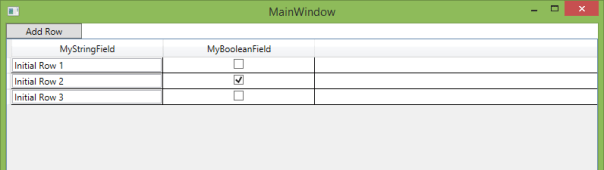
F5 and the magic happens. See the 3 items have loaded in the object initialised above and the correct control types are displayed in the columns. Clicking Add Row a new object is loaded into the grid, and if you inspect the source object you can see it has also added to our source object
For more detail see the source code
So that sums it up. Obviously this example is very basic and only has 2 field types, but running with this idea the User Interface can use the same DataGrid solution for any data type meaning minimal effort generating the User Interface for new data types added into the application
If you are interested in a more thorough implementation see the source code in my User Interface framework here. Be warned though it has been extended to many more data types, abstraction from the data source, styles, validation, on change triggers, custom functions, sorting etc. so has a significant amount more code to go through when connecting the pieces together
That completes this example. Over and out
 JM SOFTWARE