Category Archives: Dynamics for CE

PCF Form Message Solution

This solution contains a PCF control for displaying an informational message on a Model Driven App form

This PCF control was created to solve a limitation on quick create forms, where an information message could not be displayed inline on a quick create form. This PCF control solves that by binding to a multi line string field which should be set to the html for rendering in the message

The solution for this PCF control can be found here, and the code repository here

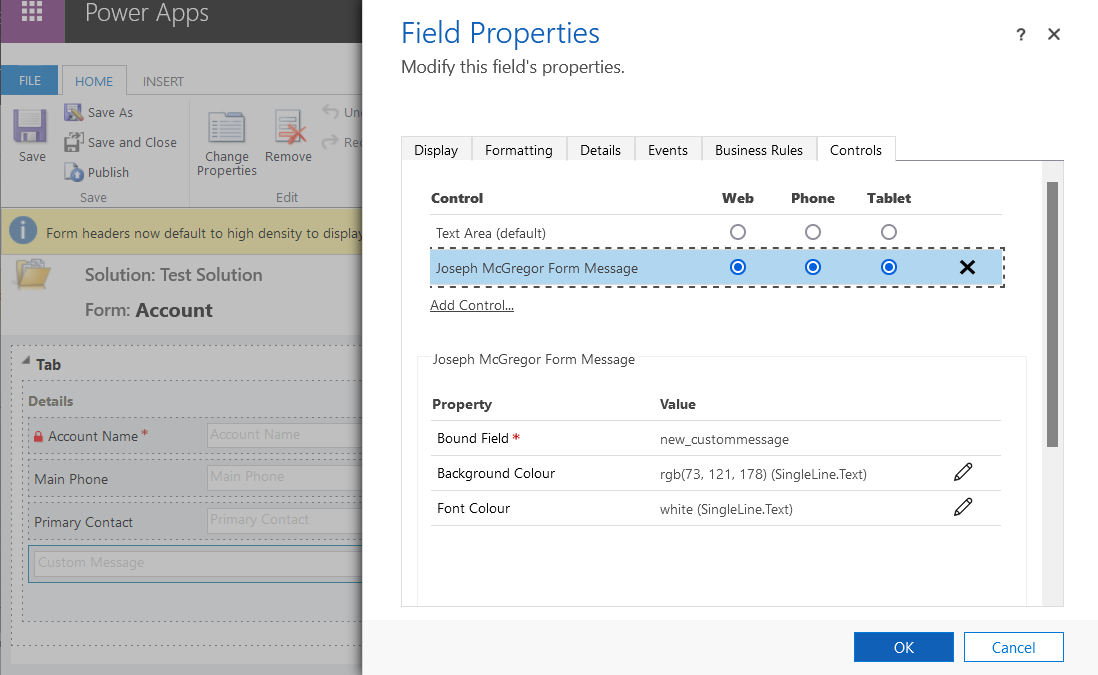
This screenshot shows a field Custom Message field configured to use the PCF control

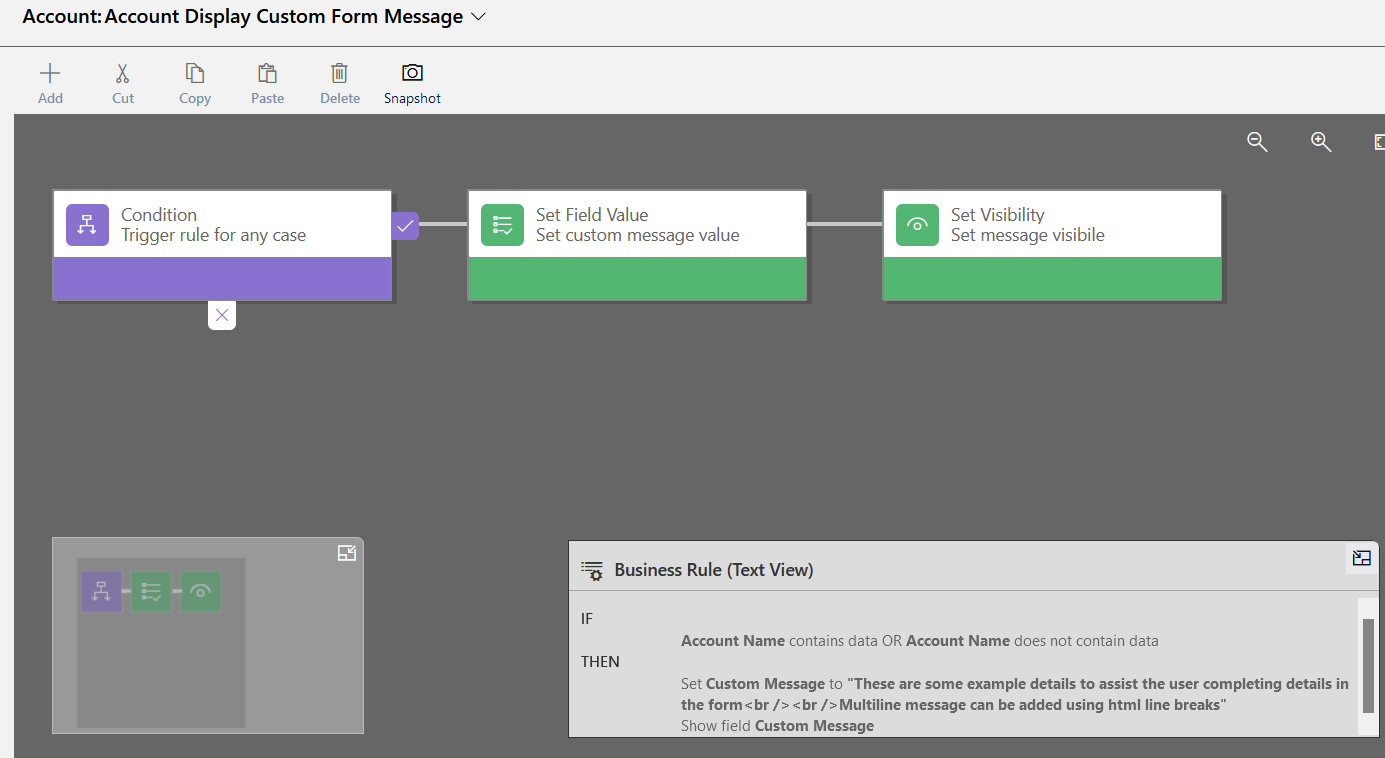
For the purposes of an example message this Business Rule triggers on account forms to populate the HTML into the Custom Message field. Note this gives the flexibility to display contextual messages with relevant field information

This screenshot shows the PCF control displaying a message on the quick create form. As you can see this gives extra flexibility in displaying information to the user than standard configurations

If you have any questions on the implementation or use of this PCF control feel free to comment

Code Snippet – Change Calendar Start Date

Recently I created a Customer Service Schedule Calendar where I had to calculate durations for work hours including those prior to the date I created the Calendar

To my dismay I discovered the TimeBlocks returned by the ExpandCalendarRequest only started at the time the Calendar was created and no earlier. This meant calculations for work hours prior to the date were not counted

Upon investigation turns out a field Start date within the Calendar Rules for the calendar are what restrict this period for the calendar. The C# script below updated this to earlier in the Calendar Rules and fixed my problem

//replace this with your calendar id
var calendarId = new Guid("5CD816C1-FB2D-EB11-A813-000D3A569254");

var startDate = new DateTime(1910, 1, 1, 0, 0, 0, DateTimeKind.Utc);
var calendar = xrmService.Retrieve("calendar", calendarId);
var calendarRules = calendar["calendarrules"] as EntityCollection;
foreach (var calendarRule in calendarRules.Entities)
{
    calendarRule["starttime"] = startDate;
}
xrmService.Update(calendar);

Use Queues to Send Automated Emails

Generally I think this is best practice. In some cases we may want more personal emails sent, and replies to go directly back to users, but this more relates to notifications or other automated emailing scenario such as sending sales documents (invoices for example)

In Microsoft Dynamics mailboxes are created for each queue, as well as each user, which is created in the system

  • User mailboxes will generally be their personal email address, and queue email addresses may be any email address
  • With user mailboxes security is generally relevant, and by default users processes cannot send emails from another user, unless they are granted such permissions. With queue mailboxes security is not so relevant and users processes can send emails from queues, for the most part, without requiring additional privileges for sending emails
  • Each user account, and therefore its mailbox, in the system requires a Dynamics 365 license. A queue, and therefore its mailbox, does not require a Dynamics 365 license
  • In the scenario of automated emails generally we are using a generic email address, not tied to a person/user. We do not want it to consume a license if possible

Based on these points I think using a Queue generally comes out as a clear winner for most automated emailing scenarios


Use a Service Account for Production Deployments

This may be standard practice for some but several times I have experienced problems related to this

When deployments are performed in Microsoft Dynamics any workflows, settings records, or case creation rules for example, which get created during that deployment are set with the user performing the deployment as the owner. If that user doesn’t have sufficient access permissions at any time related processes may begin to throw errors and impact process in the system

What I have experienced several times is project users do deployments to production with their personal user as the owner. This is fine for a duration of time, but at some stage later down the track that individual moves on, has their user disabled, and the system starts throwing confusing errors related to missing security. These can take a while to identify, and fix, and require assigning those processes to different active users

Where the deployments are done with a service account this risk is very low as service accounts are more unlikely to get disabled

A service account requiring a licence merits consideration, but in alot of cases a service account is required anyway for administration, integrations or other processes so may not actually mean extra licenses are required

That’s all folks

Why You Should NOT Deploy Customisations in Managed State

In most cases managed solutions should not by businesses who customise the Dynamics for CE platform for their business

Managed solutions are great where a vendor or developer has a solution or product which may be reused by multiple end-user instances. In the scenario where customisations are specific for one business and only going to be deployed to that one businesses production instance this is where unmanaged solutions are the way to go

Lets go through the reasons

All environments may be refreshed from production to keep them consistent

This is first and foremost. Microsoft’s online tenancies in Office 365 provide the fantastic feature of being able to copy a Dynamics instance. This means with a few clicks in Office 365 an administrator can create a complete copy of your production instance for development and testing. Similar functions may be achieved On-premise, although it is not quite as simple

If your production instance has your customisations in a managed state, you can never refresh your development instance from it. This is because customisations need to be  be kept unmanaged in the development instance. If they are refreshed as managed then they are in a terminally managed state. This means you will never be able to refresh your development instances from production to ensure they are 100% in synch.

Not being able to refresh your development instance from production is a major problem. Often customisations will become irrevocably out of synch and there is a very real risk that at some point you will get failed deployments into production which cannot be resolved

Development instances should be the same as production

This is a simple one. Production and non production instances should be kept consistent as much as possible. If the customisations are managed in production, and not in the other instances, then the systems behaviour will be different. This means any behaviour when customising in development instances may not be able to be replicated into production

Refreshing Individual Components From Production

Often when customising the system it is necessary to refresh individual items from production. This could be a workflow, form, view, plugin trigger, email template. whatever. If you have been deploying items into production in a managed state then this is often not possible

Deployment Failures

This is a major risk. Various times I have seen obscure error messages when deploying components between environments. They are few and far between when managed properly, but when they do happen can cause major headaches

When these errors occur often scarce information is provided and no method given to fix. We generally need to identify the artifact causing the error. Once identified often a solution is to simply refresh this artifact from the target instance, recustomise, then redeploy. As mentioned above this is not possible when we are deploying managed solutions

There are many other reasons not to use managed solutions, but they are too exahustive to list

Okay so those are reasons why you shouldn’t go managed. Lets look at I believe the main reason why people opt to go managed

Deployments can be staged and uninstalled

In one instance this was given as a reason to me why a business was using managed solutions. This seems great in theory, however in practice there are better ways to rollback or fix any issues encountered during deployment

Most issues encountered during deployment are minor issues which simply require a minor task to rectify it. Extremely rarely does a proper rollback need to be performed. In the case where a rollback needs to be performed, unless there hasn’t been an outage, and has been a large volume of data changes during the deployment, you are better just restoring from a backup

So. Rather than causing considerable other problems for this minor benefit, simply include taking a backup prior to deployments. in the unlikely case you need to do a proper rollback, just restore the backup

In summary always start with unmanaged deployments when customising Microsoft Dynamics for one end user instance. I am yet to have any regrets with this choice over many, many, Microsoft Dynamics solutions implemented and deployed
Activity File Attacher Solution

This article details a micro solution for Dynamics 365 I have created and added to github here. A managed version of the dynamics 365 solution can be found here

The solution contains a web resource which may be added to the email and appointment forms to simplify adding file attachments. OOTB the attachments grid requires several clicks and forms for adding an attachment, and they need to be done one by one. This resource provides the ability to drag/drop, or select multiple files for attachment without requiring to go through the attachment dialog

Note I have not added the ability to remove, clear or perform any actions other than adding new attachments just to keep the resource simple

This solution was implemented on Microsoft Dynamics Version 8.2 and will not work on earlier versions

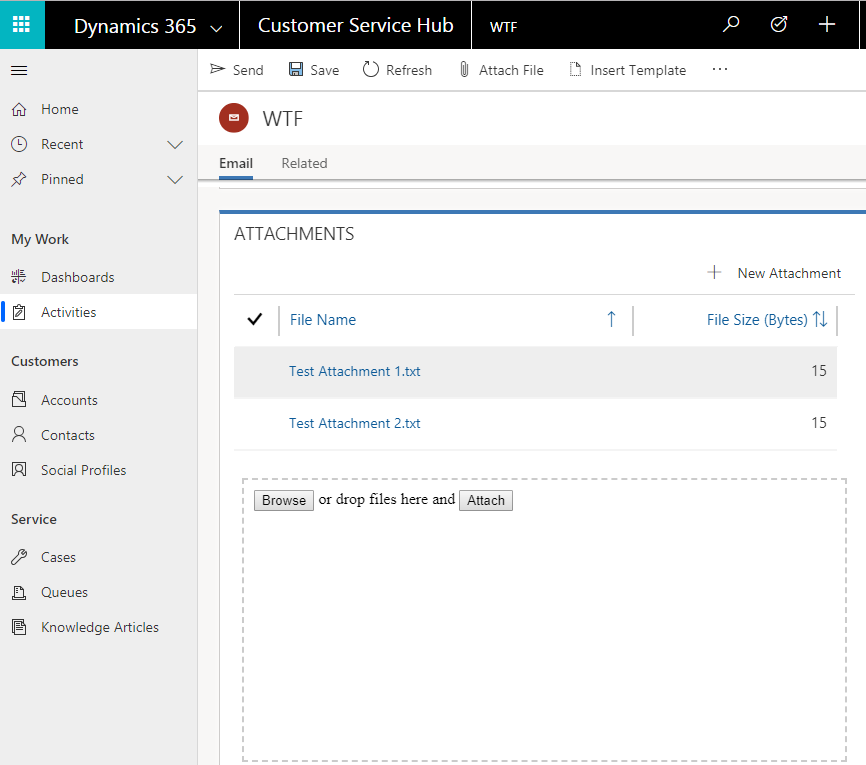
This screenshot shows the web resource in action in the Customer Service Hub. You see files may be dropped within the drop space, or selected using the Browse button. Once the files have been added in the web resource click Attach to add them to the Email

activity file attacher

Activity File Attacher Added.png

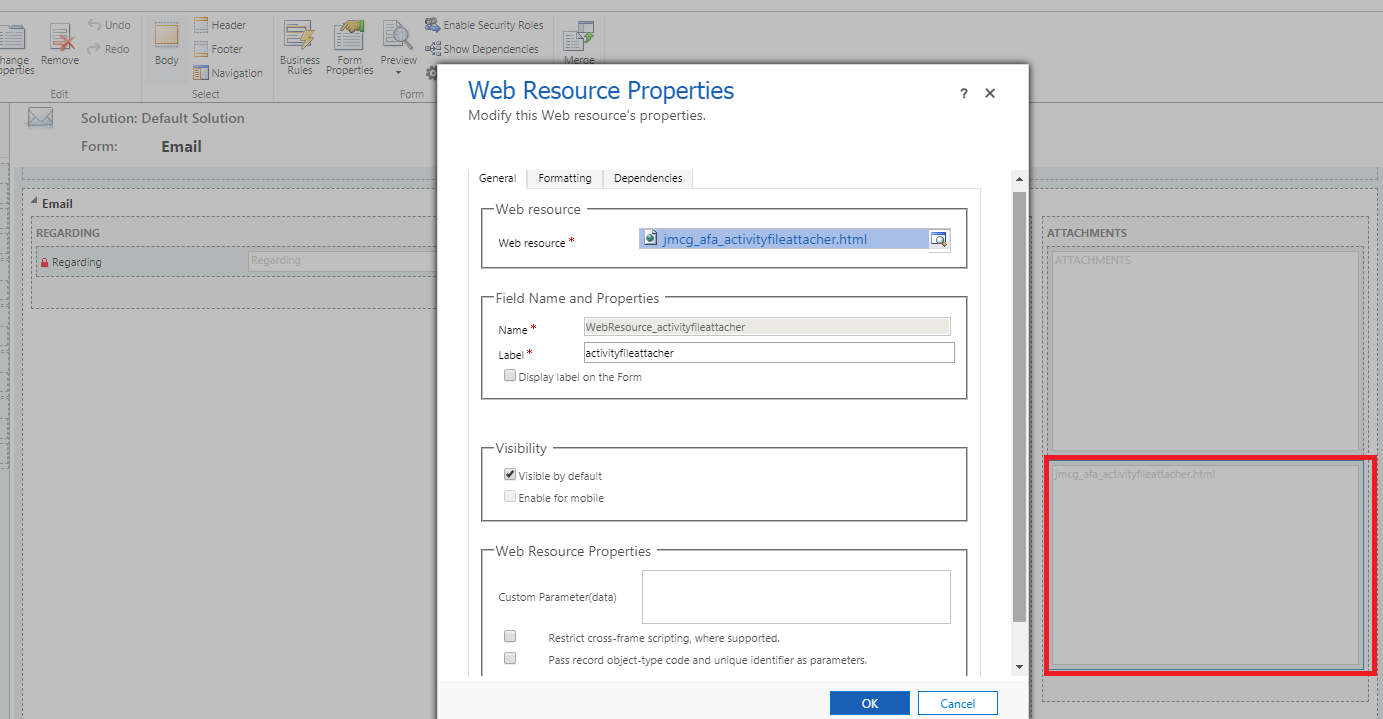
Configuration of the resource is shown in the screenshots below. The first screenshot shows I have inserted the web resource on the email form below the attachments grid.

Activity File Attacher Configuration.png

This second screenshot shows several relevant settings on the second tab of the web resource properties

Activity File Attacher Configuration 2.png

In terms of the implementation it is relatively basic. Jquery is used for manipulating html including the drag/drop capability, and the Dynamics 365 WebAPI is used to create the attachments when the Attach button is clicked

Feel free to grab the code off github and use it if you wish, otherwise if you are happy to use the solution as is just install the managed solution