The Lookup feature populates from a column through a lookup. That is when a lookup column is populated, the calculation will copy a column value from the referenced record and populated it into the target column of the calculation
Optionally when the value in the referenced records changes, the calculation can also be configured to keep the value in synch. This option is only recommended for small volumes of related records
For a lookup calculated field open the new calculated field form and select Lookup as the Type, the select the table and column you want to auto-populate from the lookup calculation. This example will populate a price column on a course enrolment record, with the listed price column in a referenced course

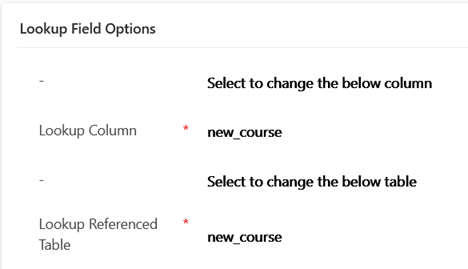
The next lookup field options section is for entering the lookup column, and referenced table type, in which the column will be populated from. In the case the lookup column and table both have logical name new_course. That is the new_courseenrolment table contains a lookup column named new_course which references the new_course table
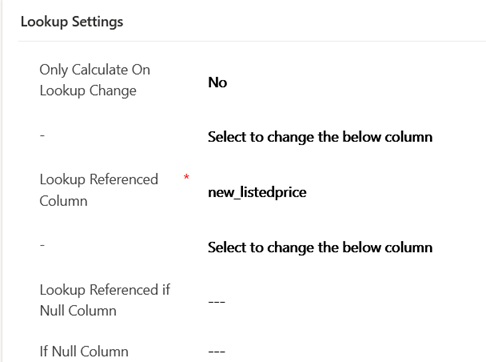
The next lookup settings section is where we select the column to populate from. In this example we pull the value of the column new_listedprice which is what will populate into the price field on the course enrolment
Other configurations in this section are lesser user. You can configure the column value to continuously synch if it subsequently changes (think carefully before using this option is it will have performance problems if there are many related records), and you can also opt for a ‘fallback’ column where the primary column looked up is empty
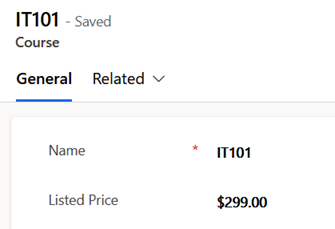
Here is an example of the lookup calculation in use. Firstly, this course record has a listed price of $299.00
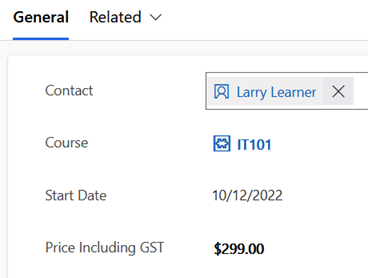
Creating a course enrolment record linked to it, see the price has auto-populated from the course
 JM SOFTWARE