The Concatenate feature auto-populates a string with up to 7 other fields using a range of separation and formatting options
Where complex formatting rules and wording is needed each part of the concatenation has options for prefixes, separators, suffixes & formatting to allow more natural wording or terms to be used in each part of the concatenation
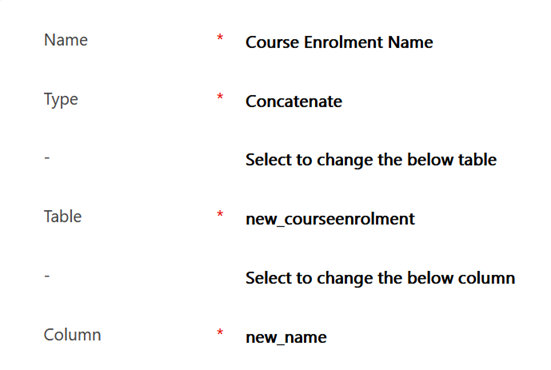
To create a calculated field of type concatenate, enter the type, table, and column to auto-populate. in the first general section. This example will populate the name for records in a custom table type for course enrolments
In the next separator configuration section, a standard separator for all columns in the concatenation can be entered. If there is not uniformity for separators in the concatenation, then None should be selected as the separator type in this section

The next section also allows entering a few other options for the concatenation including empty words, words to exclude, and characters to trim. The only option I enter in this example is to truncate to 200 characters as this is the maximum length of the field

After separator there are 7 sections for columns to include in the calculation. The first column below has an example where the concatenation begins with a formatted start date of the course enrolment
In this example there is no need to enter strings to prepend or append to the start date as we specified in the earlier section to separate all value with a hyphen

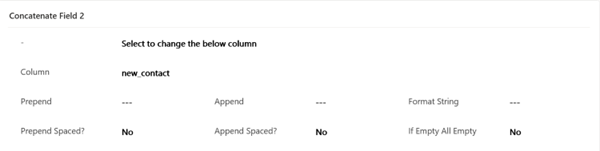
The next sections in this example add contact and course with no necessary formatting, prefixes or suffixes

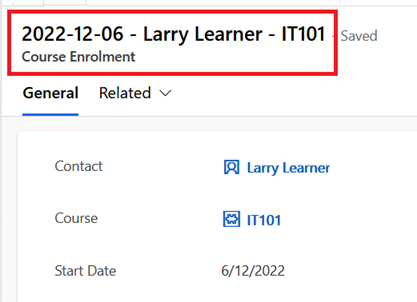
The screenshot below shows a course enrolment name generated for the given example
 JM SOFTWARE