The Add Time feature auto-populates a date field as a given duration before or after another date field. This feature is particularly useful where actions or reminders are required at a given duration before or after the other date.
The amount of time added or subtracted from the date can be either of the following
- Minutes
- Hours
- Days
- Months
- Work Minutes
- Work Hours
- Work Days
Note for “Work Time” durations, the ID of a customer service calendar needs to be entered into the configuration record for the solution to identify work hours when performing calculations.
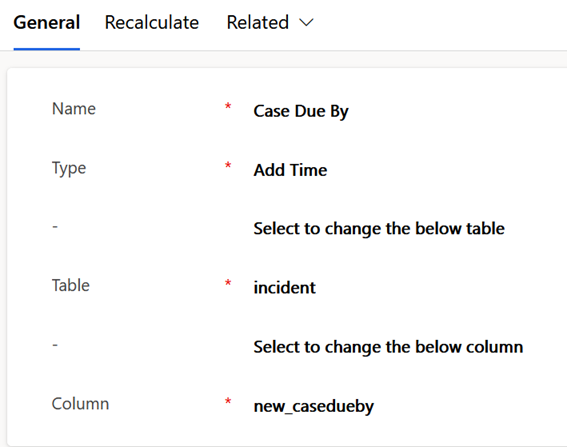
As with all calculated field rules, an add time rule is configured by creating a calculated field record. The calculation type, table, and column you want to auto-populate. are selected in the first general section
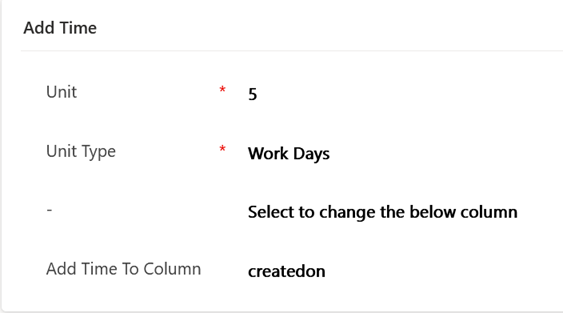
In the next add time section details of the duration and filed being added to are entered. This example has case due by populated as 5 work days after a case is created
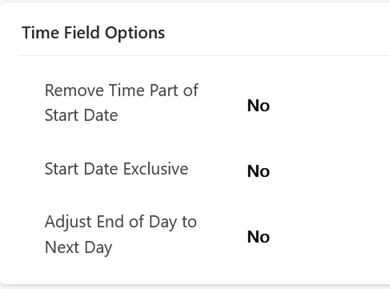
In the next time options section several calculation options can adjust date and values used in the calculation if it better suits requirements or the work calendar hours
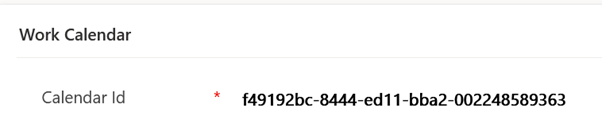
Moving down to the work calendar section we must enter the primary key of a calendar which defines work hours for the calculation. This section is only required of the Unit Type is work minutes, work hours, or work days
This screenshot shows the field having been calculated after creating the Calculated Field configuration record and a new case
In this case the calendar has skipped non work days Saturday and Sunday in counting the 5 days, and has resolved the case as due 7 days or 1 week later

 JM SOFTWARE