All posts by josephmcmac

Use a Service Account for Production Deployments

This may be standard practice for some but several times I have experienced problems related to this

When deployments are performed in Microsoft Dynamics any workflows, settings records, or case creation rules for example, which get created during that deployment are set with the user performing the deployment as the owner. If that user doesn’t have sufficient access permissions at any time related processes may begin to throw errors and impact process in the system

What I have experienced several times is project users do deployments to production with their personal user as the owner. This is fine for a duration of time, but at some stage later down the track that individual moves on, has their user disabled, and the system starts throwing confusing errors related to missing security. These can take a while to identify, and fix, and require assigning those processes to different active users

Where the deployments are done with a service account this risk is very low as service accounts are more unlikely to get disabled

A service account requiring a licence merits consideration, but in alot of cases a service account is required anyway for administration, integrations or other processes so may not actually mean extra licenses are required

That’s all folks

Why You Should NOT Deploy Customisations in Managed State

In most cases managed solutions should not by businesses who customise the Dynamics for CE platform for their business

Managed solutions are great where a vendor or developer has a solution or product which may be reused by multiple end-user instances. In the scenario where customisations are specific for one business and only going to be deployed to that one businesses production instance this is where unmanaged solutions are the way to go

Lets go through the reasons

All environments may be refreshed from production to keep them consistent

This is first and foremost. Microsoft’s online tenancies in Office 365 provide the fantastic feature of being able to copy a Dynamics instance. This means with a few clicks in Office 365 an administrator can create a complete copy of your production instance for development and testing. Similar functions may be achieved On-premise, although it is not quite as simple

If your production instance has your customisations in a managed state, you can never refresh your development instance from it. This is because customisations need to be  be kept unmanaged in the development instance. If they are refreshed as managed then they are in a terminally managed state. This means you will never be able to refresh your development instances from production to ensure they are 100% in synch.

Not being able to refresh your development instance from production is a major problem. Often customisations will become irrevocably out of synch and there is a very real risk that at some point you will get failed deployments into production which cannot be resolved

Development instances should be the same as production

This is a simple one. Production and non production instances should be kept consistent as much as possible. If the customisations are managed in production, and not in the other instances, then the systems behaviour will be different. This means any behaviour when customising in development instances may not be able to be replicated into production

Refreshing Individual Components From Production

Often when customising the system it is necessary to refresh individual items from production. This could be a workflow, form, view, plugin trigger, email template. whatever. If you have been deploying items into production in a managed state then this is often not possible

Deployment Failures

This is a major risk. Various times I have seen obscure error messages when deploying components between environments. They are few and far between when managed properly, but when they do happen can cause major headaches

When these errors occur often scarce information is provided and no method given to fix. We generally need to identify the artifact causing the error. Once identified often a solution is to simply refresh this artifact from the target instance, recustomise, then redeploy. As mentioned above this is not possible when we are deploying managed solutions

There are many other reasons not to use managed solutions, but they are too exahustive to list

Okay so those are reasons why you shouldn’t go managed. Lets look at I believe the main reason why people opt to go managed

Deployments can be staged and uninstalled

In one instance this was given as a reason to me why a business was using managed solutions. This seems great in theory, however in practice there are better ways to rollback or fix any issues encountered during deployment

Most issues encountered during deployment are minor issues which simply require a minor task to rectify it. Extremely rarely does a proper rollback need to be performed. In the case where a rollback needs to be performed, unless there hasn’t been an outage, and has been a large volume of data changes during the deployment, you are better just restoring from a backup

So. Rather than causing considerable other problems for this minor benefit, simply include taking a backup prior to deployments. in the unlikely case you need to do a proper rollback, just restore the backup

In summary always start with unmanaged deployments when customising Microsoft Dynamics for one end user instance. I am yet to have any regrets with this choice over many, many, Microsoft Dynamics solutions implemented and deployed

Activity File Attacher Solution

This article details a micro solution for Dynamics 365 I have created and added to github here. A managed version of the dynamics 365 solution can be found here

The solution contains a web resource which may be added to the email and appointment forms to simplify adding file attachments. OOTB the attachments grid requires several clicks and forms for adding an attachment, and they need to be done one by one. This resource provides the ability to drag/drop, or select multiple files for attachment without requiring to go through the attachment dialog

Note I have not added the ability to remove, clear or perform any actions other than adding new attachments just to keep the resource simple

This solution was implemented on Microsoft Dynamics Version 8.2 and will not work on earlier versions

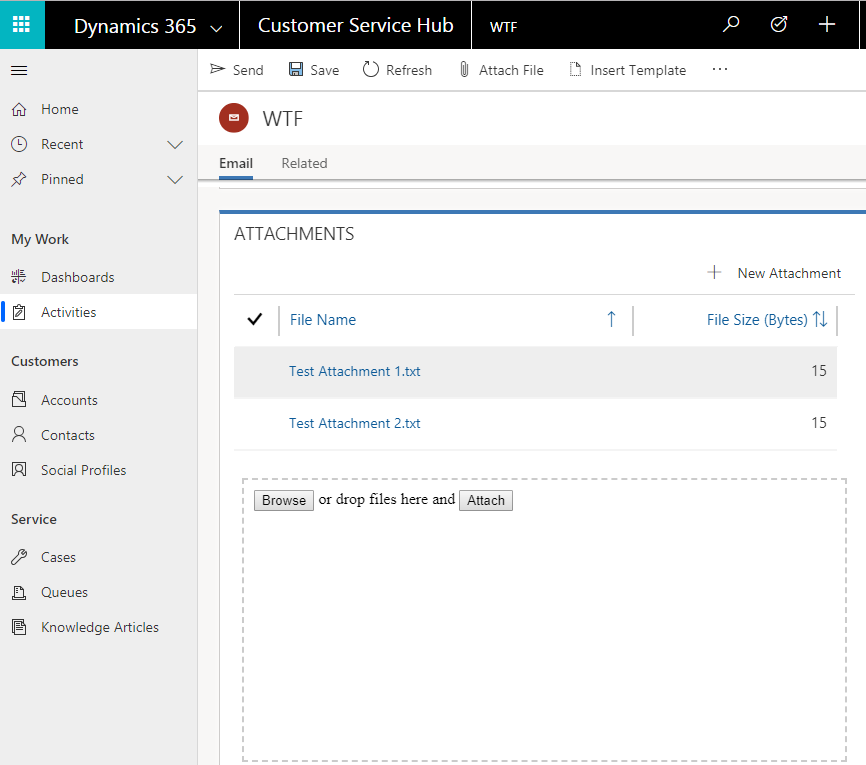
This screenshot shows the web resource in action in the Customer Service Hub. You see files may be dropped within the drop space, or selected using the Browse button. Once the files have been added in the web resource click Attach to add them to the Email

activity file attacher

Activity File Attacher Added.png

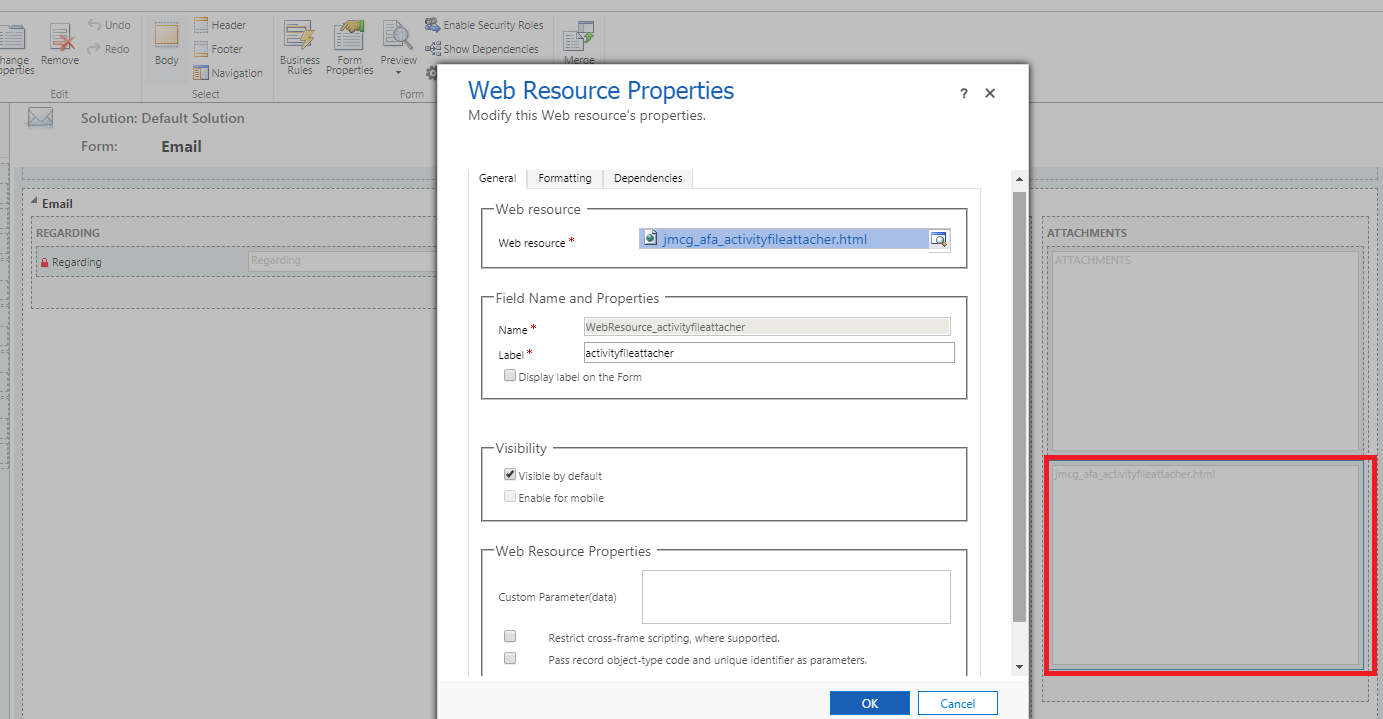
Configuration of the resource is shown in the screenshots below. The first screenshot shows I have inserted the web resource on the email form below the attachments grid.

Activity File Attacher Configuration.png

This second screenshot shows several relevant settings on the second tab of the web resource properties

Activity File Attacher Configuration 2.png

In terms of the implementation it is relatively basic. Jquery is used for manipulating html including the drag/drop capability, and the Dynamics 365 WebAPI is used to create the attachments when the Attach button is clicked

Feel free to grab the code off github and use it if you wish, otherwise if you are happy to use the solution as is just install the managed solution


HTML Resource for CSV Import

This article describes implementation of a custom HTML resource for bulk importing records in a CSV file into the dynamics 365 web application. This proved to be a good option when the data importing was not sufficient for creating and/or appending to multiple record types

Specifically this scenario will support importing multiple opportunity records, and will also create the associated contacts and accounts if no matching record exists in the system

This will also cover implementing the following dynamics CRM component types with my visual studio extension detailed here

  • Custom workflow activity
  • JavaScript calling dynamics 365 web api to invoke a custom action

The source code described in this article is accessible here

Requirements

Lets define some loose requirements

  • The user should be able to import a CSV file to create multiple Opportunity records
  • Columns required are
    • First Name
    • Last Name
    • Email
    • Mobile Phone
    • Business Phone
    • Company
    • Topic
  • If a contact already exists for the email address, then that contact should be used for the opportunity and its details should not be updated. Otherwise a new contact should be created
  • If an account already exists with the Company name then it should be used for the opportunity. Otherwise a new account should be created
  • Any new Account created by the importer should have its Relationship Type set to prospect
  • Hyperlinks should be displayed for each record created to allow opening

Solution Design

Okay lets break down a solution. A NASA landing craft this ain’t so I’ll just list them out. I don’t think any diagrams or other such things are necessary

  • HTML web resource
    • A button to download a CSV template
    • A button to select and load a CSV file
    • Display of the loaded CSV data prior to processing
    • A button to Run the import
    • Display of import progress and results
  • JavaScript web resource implementing logic behind the HTML
    • Loading a CSV file for display in the User Interface
    • Looping  through and creating each opportunity while displaying progress
  • Custom workflow activity
    • This will contain the guts of the opportunity creation
    • It will take the JSON for a CSV row, process it, and return relevant details
    • Technically this could all be done in JavaScript however writing C# code is more pleasant than JavaScript and has various advantages for scripting tests, using transactions and using existing code libraries
  • Custom action
    • This will basically connect the dots between the JavaScript and the Custom Workflow Activity
    • It will be called by JavaScript for each opportunity, invoke the custom workflow activity and return the results

Visual Studio Solution

The first step for this is creating a new Visual Studio solution based on the JosephM Xrm Solution template which is installed as part of the JosephM.Xrm.Vsix extension. I will not go through that detail here. If necessary this is detailed in the article here

The following will just details the main components.

HTML Web Resource

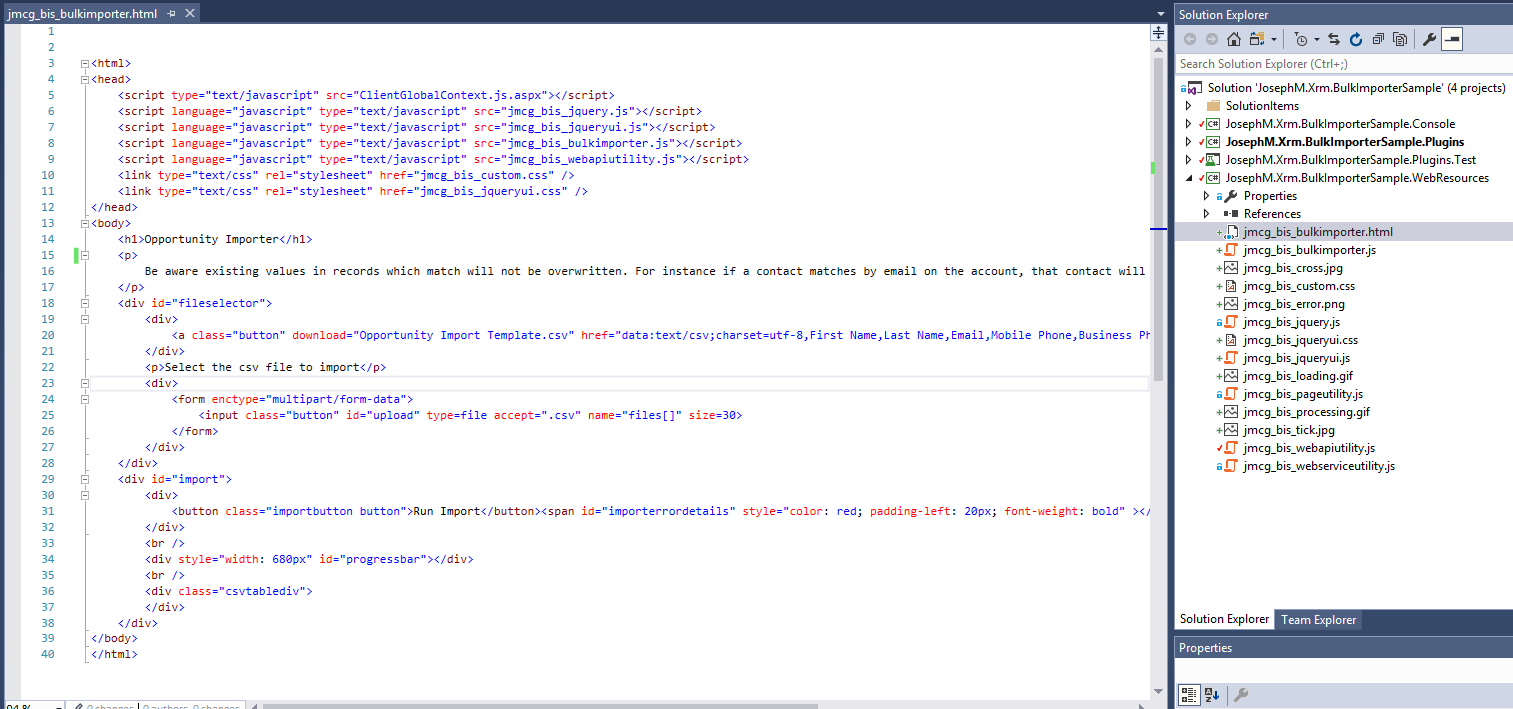
Okay so the HTML defines the user interface elements. All processing logic will be defined into the JavaScript file which is referenced

In terms of the content there is not much to it

  • A heading section with some brief details
  • A fileselector div which is to be displayed initially, then hidden when one is selected. This also contains a hyperlink styles as a button for downloading the csv template
  • An import div which is to be displayed when a CSV has been loaded. This contains the progress bar, a Run Import button, and will be populated with displaying of the CSV content by JavaScript when the CSV is loaded

Note that

  • ClientGlobalContext.js.aspx is referenced in the header. This is required for loading the dynamics context and authentication
  • Jquery.ui is referenced and used for instance to display a progress bar
  • The naming convention jmcg_bis_* is used to avoid naming conflicts with any other solutions I create in the instance with the same jmcg prefix
  • The CSV columns are hard-coded into a hyperlink for the Template Download. There may be other ways to do this not hard-coded in the HTML but this was just the first way I got it to work in all browsers I checked
  • An additional file jmcg_bis_custom.css is also added for some styling
  • Several images have been added which will be used for visualising processing, error and success states
BulkImporterHtml

JavaScript Web Resource

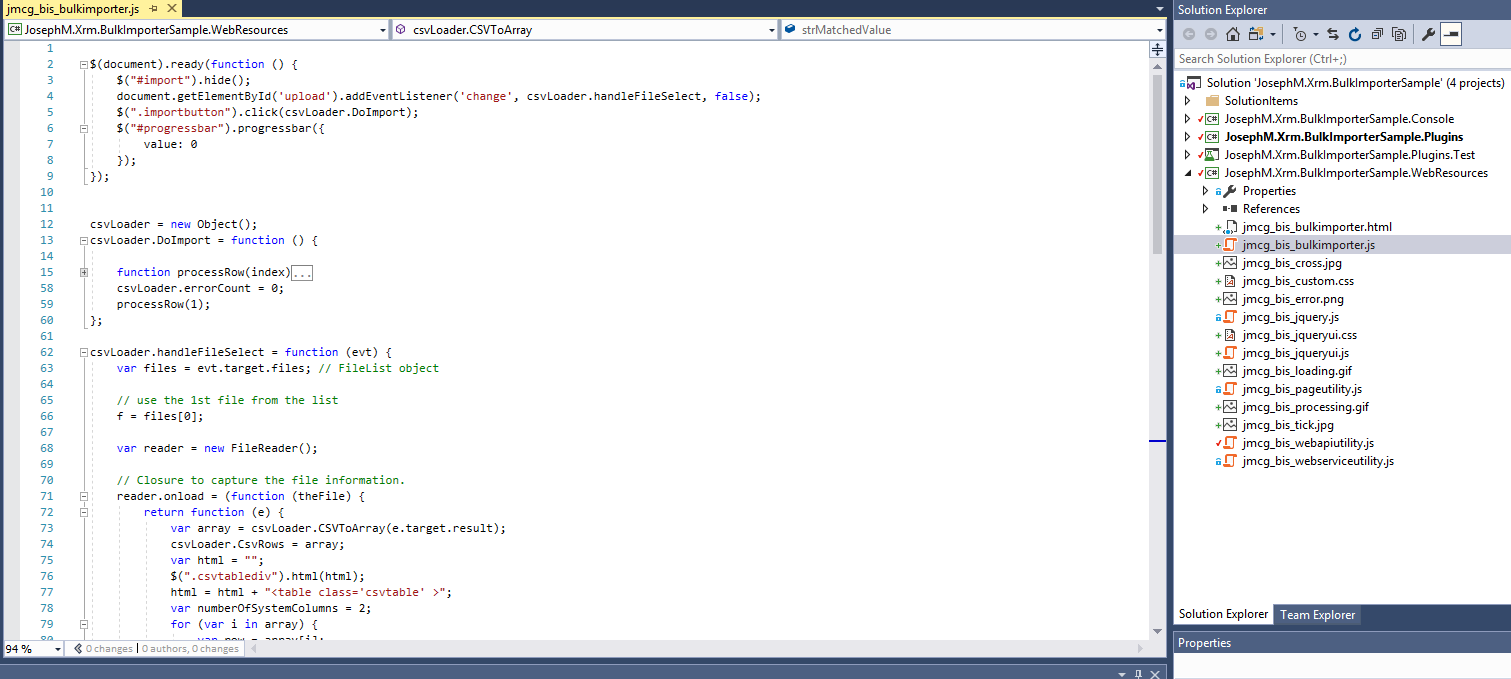
Okay so the JavaScript basically contains these things

  • A document.ready function to initialise several UI elements
  • A csvLoader.handleFileSelect method to load the data when a file is selected. Basically it parses the CSV content into JavaScript objects, then generates html to display it in the UI
  • A csvLoader.DoImport method to iterativelly create records for the loaded data when Run Import is selected. This recursively calls an action in the web API  for each JavaScript object created for the CSV data (using the jmcg_bisWebApiUtility library which was added to the project when initially created). The WEB API error/success callbacks are used to display the result with any error, as well as add a hyperlink, then re trigger the method for the next row
  • A csvLoader.CSVToArray method called by the csvLoader.handleFileSelect method. This code I got off some dude on the web who had already written code to parse a CSV into JavaScript objects
BulkImporterJavaScript

For more detail see the source code

Custom Workflow Activity

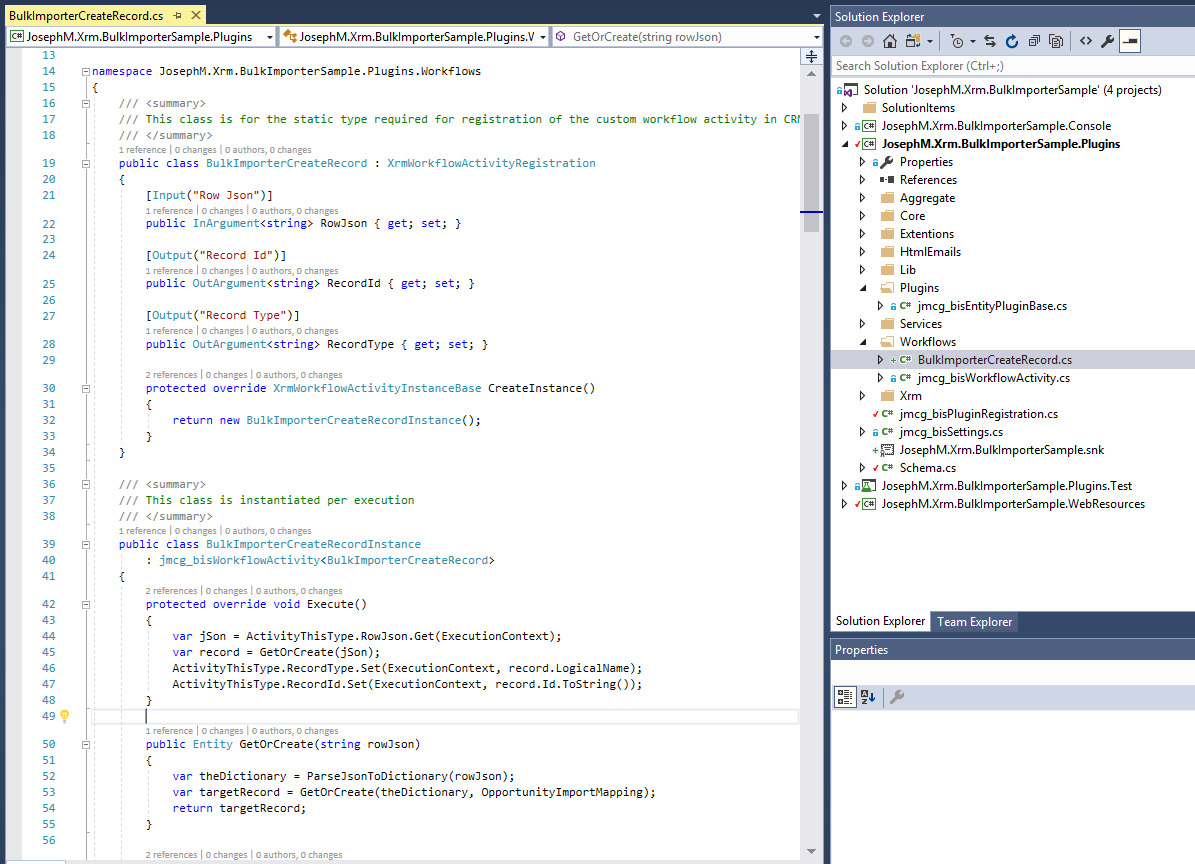
Code for the custom workflow activity is in the “BulkImporterCreateRecord.cs” file as shown in the subsequent screenshot. It was created based on a project item template installed as part of the visual studio extension and uses base classes for simplifying code and allowing creation of workflow instances in test scripts

Note there are actually 2 classes in this file. The SDK type for custom workflow activities is not thread safe and cannot use extended properties or variables for each execution instance. This 2 class approach is a pattern I have settled on and it works well for me

  • BulkImporterCreateRecord – this is the ‘Registration’ object. It is used to register the custom activity type in the dynamics instance for use in a workflow, and contains properties for the Input and Output parameters as per the standard SDK approach
  • BulkImporterCreateRecordInstance – this class for the guts of the logic. It is created and spawned by the BulkImporterCreateRecord  class, processes the guts of the logic, and sets results in the  BulkImporterCreateRecord output parameters. Concerning the actual logic to create the records etc. I guess there are hundreds of ways to do this. I just  used a relatively simple and flexible approach where I define maps between CSV columns and types/fields for record creation. This means it is simpler to adjust the mappings if required, as well as I think it makes the mappings and logic simple to read
  • I have used a ‘Key’ property in the mapping metadata to match contacts by email address, and ensure opportunities are not duplicated for the Topic/Contact/Customer

See the source code for more details
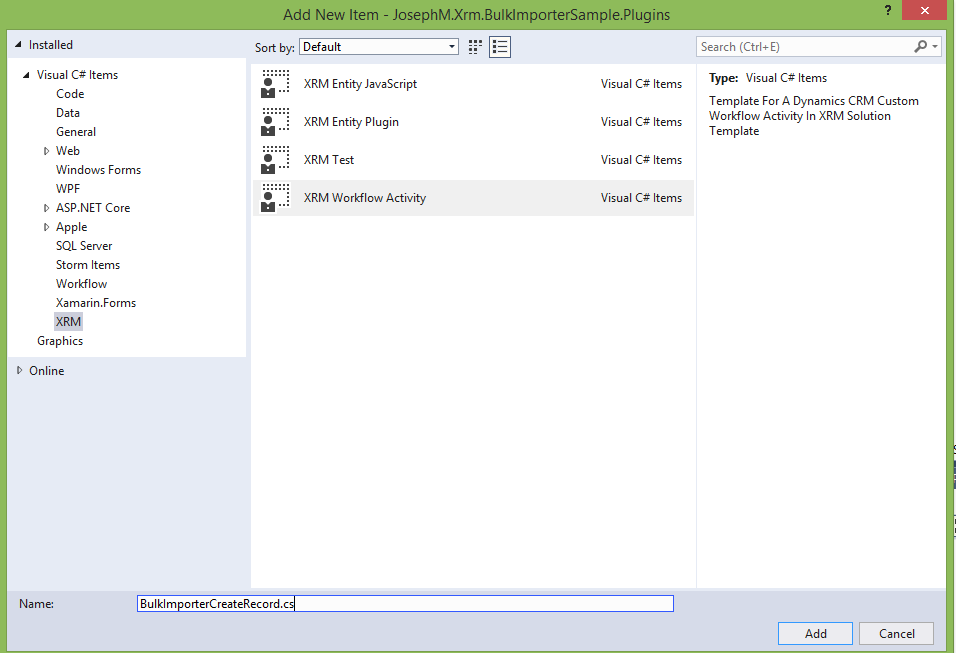
BulkImporterCustomActiivtyCodeNew.png

BulkImporterCustomActiivtyCode

Custom Action

As mentioned this simply connects the dots between the client side JavaScript, and the server side C# code

  • To create an action open the solution in the dynamics web application, click Processes in the left hand navigation, click New then select Category=Action
  • It is a global action type as it does not have a record context, it just takes a string as input
  • Enable Rollback is checked
  • Input/Output arguments are used to pass the JSON into the custom workflow activities input parameter, as well as map the custom workflow activities output parameters to the output arguments of the action
  • Record Id, and Record type are separated as output arguments just make it flexible if the type of record is changed, or other types are used
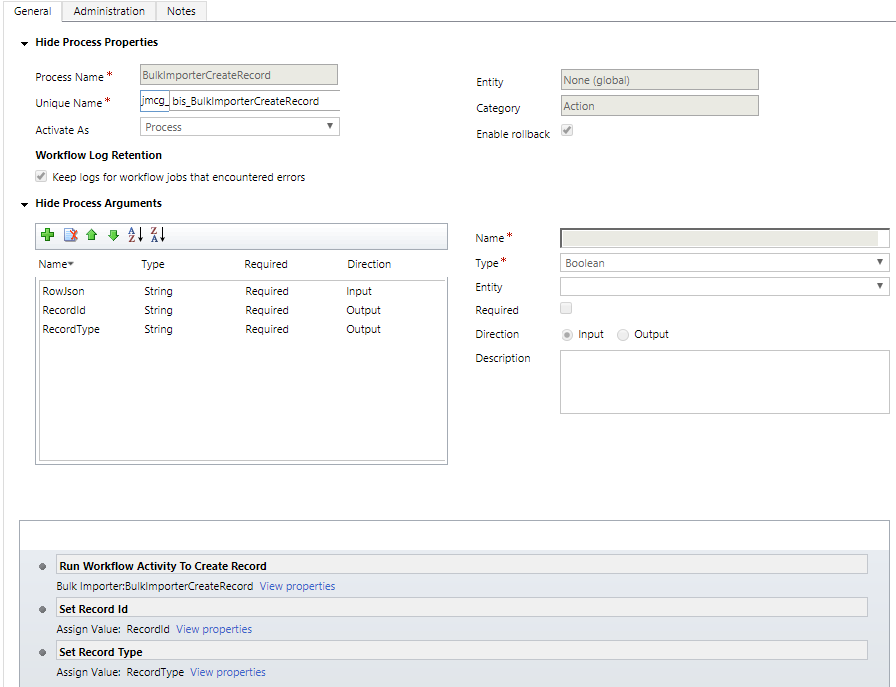
BulkImporterCustomAction.png

Test Script/Debug Of C# Code

As I am conditioned to doing I also add a script for the custom workflow activity code

In reality this was used for debugging the guts of the record creation because the first time I wrote the custom workflow activity code it did not work

It also provides the benefit of adding a regression script to the solution. If for example a new enforced required field was added to accounts or opportunities which caused the imports to fail, if this script was a part of a suite of test scripts for our holistic solution then it would get picked up and we would identify that we need to adjust something to have it work again

The code is shown below. Basically it just passes some JSON to the custom workflow activity class and verifies the records are created, then calls it again to verify duplicates are not created

Possibly more scenarios and assertions could be added but I will deem this sufficient for this article

See the source code for more details
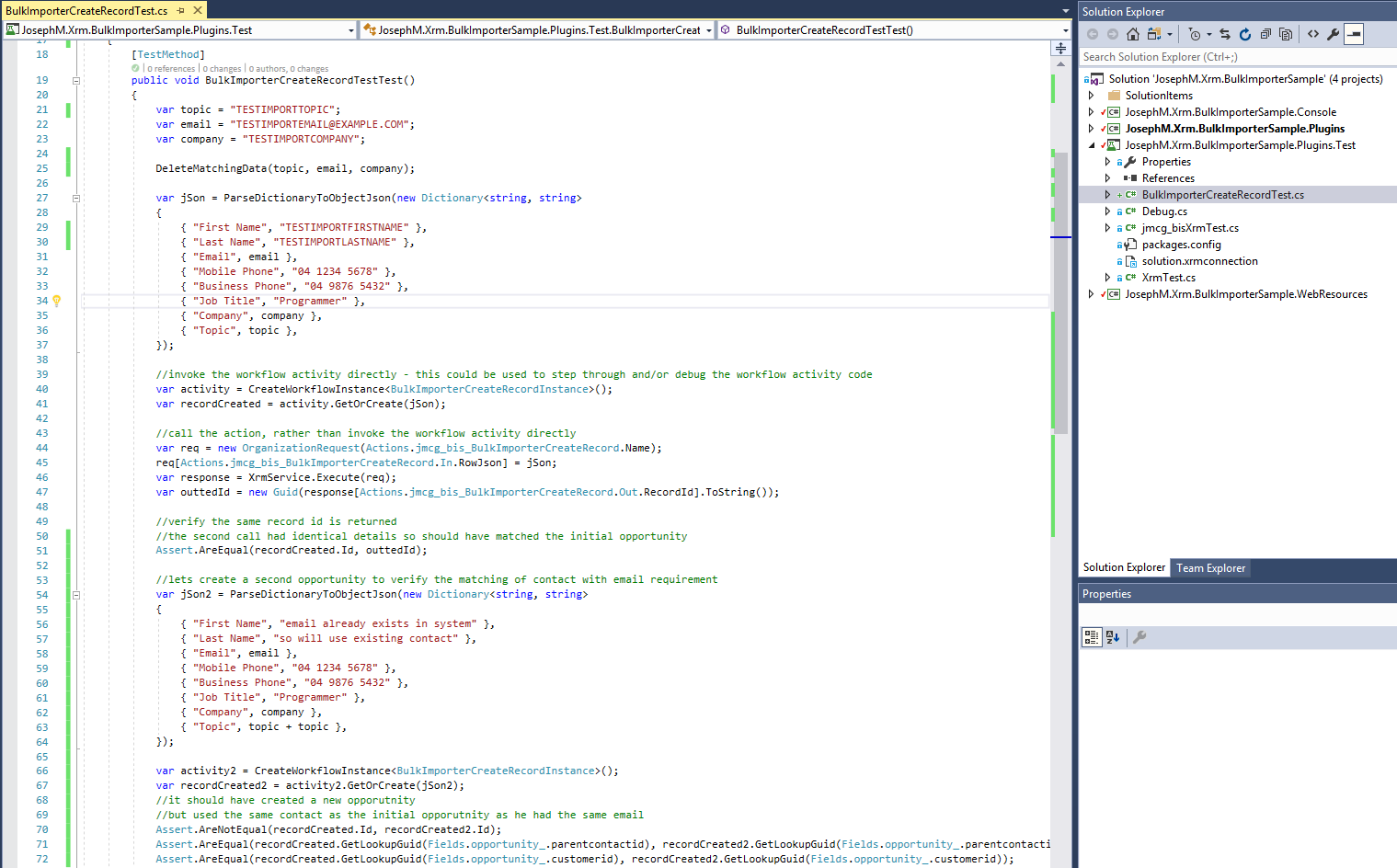
BulkImportertestScript.png

End Result

Okay now going through the Custom HTML page it all seems to work as in these screenshots. This HTML resource can now be added to the sitemap, or a dashboard, for accessibility by users in the web application

My CSS and styles are pretty basic and I don’t claim to have much in terms of design skills. Time could be spent to pretty up the user interface, but I tend to just concentrate on the functional aspects

This is the initial display
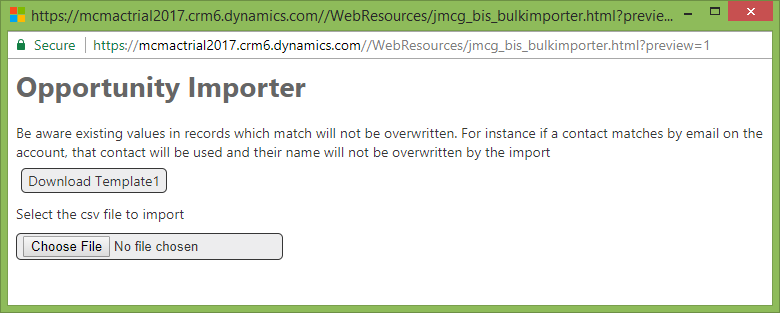
BulkImporterScreenshot1.png

After clicking Choose File and selecting a populated CSV file

Note I have a phone number exceeding the maximum characters just to confirm this error is displayed
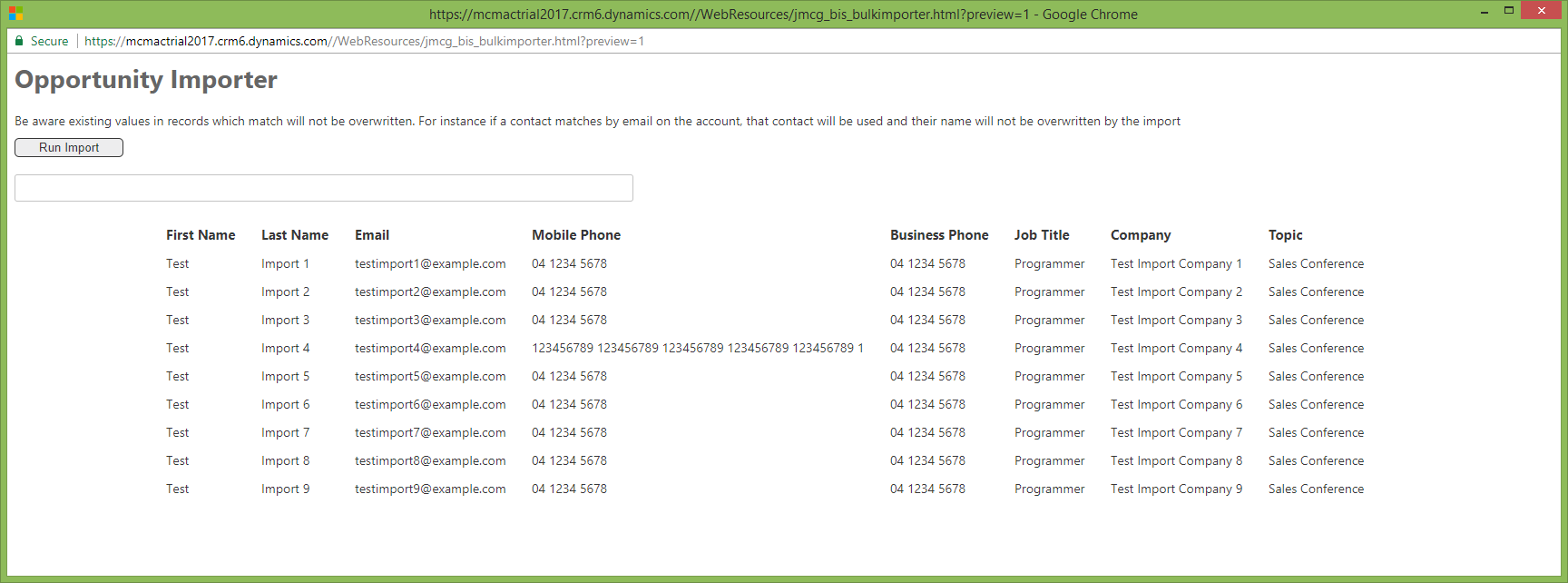
BulkImporterScreenshot2

After clicking Run Import the system has proceed through each and displayed the progress, as well as error details and hyperlinks to open the opportunities in dynamics 365
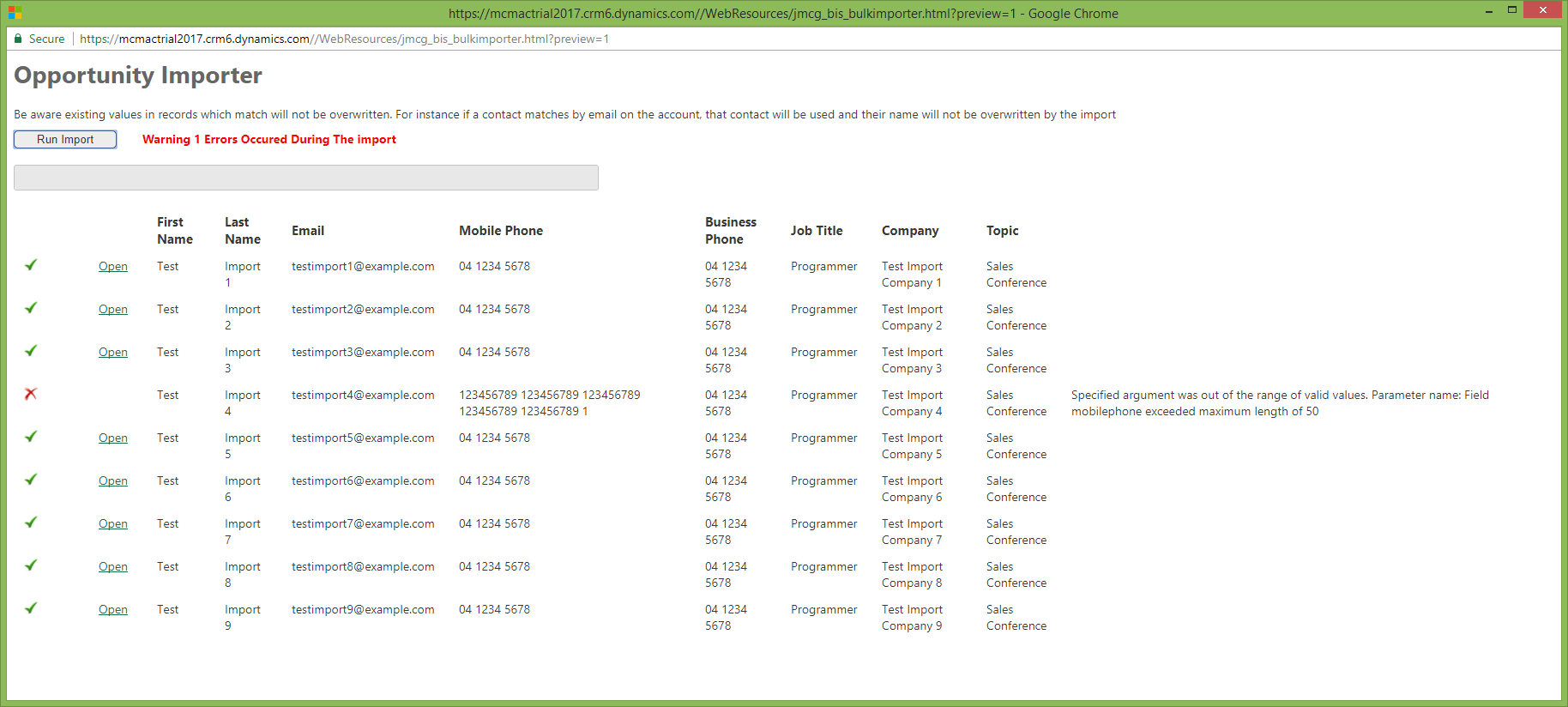
BulkImporterScreenshot3.png

Reviewing the requirements I believe I have met each of them with this solution

VSIX Benefits

To wrap this up the Visual Studio Entension provided the following benefits when implementing this solution

  • Creation of the Dynamics 365 solution during Visual Studio solution creation
  • Starting with a solution template containing JavaScript and C# libraries to simplify coding and testing
  • One click bulk creation and updating of web resources. Without it each web resource (CSS, Image, JavaScript) etc would have to be created and imported one by one in the web application
  • Deployment of the custom workflow activity in Visual Studio without having to use the SDK Plugin Registration Tool
  • Automatic adding of the Web Resource and Plugin Assembly components into my Dynamics 365 solution
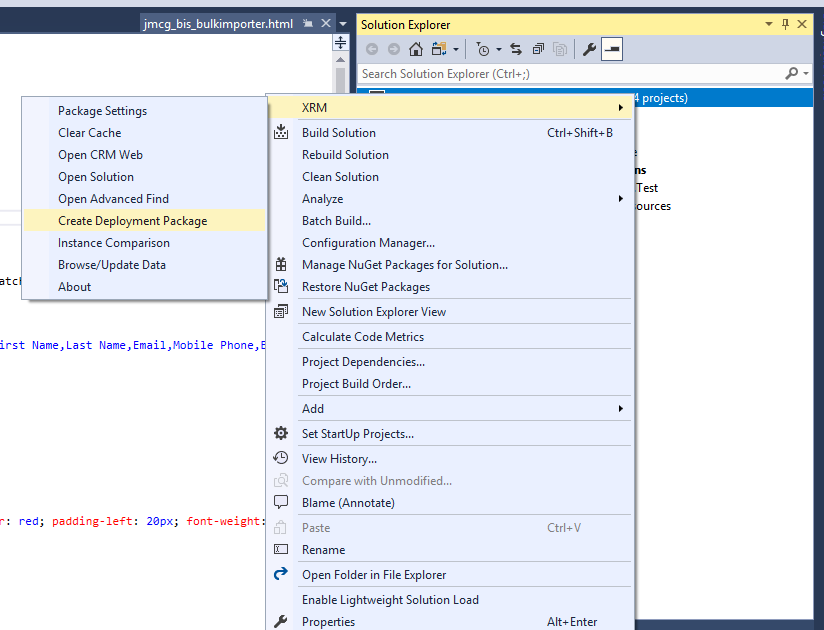
  • Navigation to the Dynamics 365 solution for creating the custom action via the solution explorer right click solution menu (Open Solution)
  • Adding the Dynamics 365 solution to the Visual Studio solution/project via the solution explorer right click solution menu (Create Deployment Package)

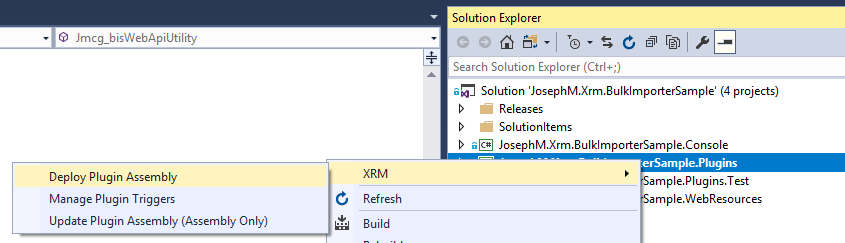
 

BulkImporterDeployResources

BulkImporterDeployAssembly

BulkImporterSolutionMenu

Dataverse Toolbelt Query & Update Data

This post details the Query & Update Data in JM Dataverse Toobelt

This is the most commonly used feature in this app and can be used to achieve any of the following

  • Arbitrarily query data for any record type in the Dataverse instance
  • Bulk update columns for the results of a query
  • Bulk delete results of a query
  • Bulk replace text in string fields for the results of a query
  • Copy FetchXml for the query to the clipboard either raw or formatted for JavaScript
  • Display total number of records for a query
  • Export query results to Excel
  • Open result in an editable form containing all columns in the table
  • Open results in the Model Driven Web UI

To run a query click the Query & Update button in the main menu. Once loaded select a record type and a query can then be created using a range of conditions, operators and joins

After the Query is run results are displayed in grid form with operations available to perform on the results

In this screenshot I have also clicked Display Totals and the total number of records is displaying in the age count at the bottom of the grid

Further documentation of bulk update and the other features available on query results are TBD

Dataverse Toolbelt Instance Comparison

This feature compares components and records between 2 instances and provides a report where it has identified differences

Cases where I have found value in this feature include

  1. Workflows and business rules not kept consistent between production and non-production environments. The feature identifies different activation states, different rules within the process, or where the customisation exists in one instance but not in the other
  2. Identifying differences in reference and configuration data between production and non-production environments
  3. Identifying components changed during a release cycle, but not included in a release package
  4. General checks of consistency between production and non-production environment

Note this feature does not compare every customisationtype. It only covers those I have implemented it for. Refreshing non-production instances from production is often a better option where instances have becomes too far divergent

The screenshot below shows option selected for a comparison. Note Web Resource takes the most time and volume of data to compare so ensure to exclude it where not required

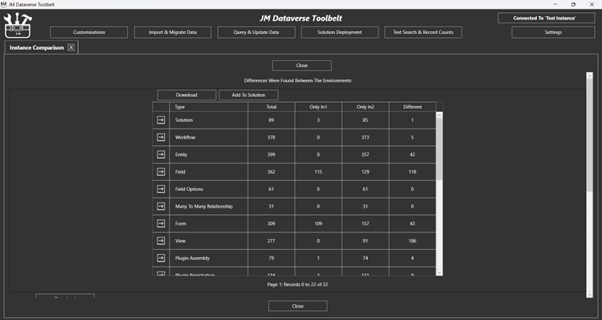
Example output summary of the process is shown below (for completely different instances)

With details of each specific further down the form. This detailed report can be exported to Excel for further inspection of specific differences

Workflow Scheduler Solution

This post details a solution created for configuring workflows to run on a scheduled basis

The dynamics 365 component in the solution for configuring these recurring processes is a custom entity named Workflow Task. This can be scheduled to run continuously with a minimum duration of 10 minutes. That is they can be configured to run every X minutes, every X hours or every X days amongst other durations. They can also be configured to only run between certain hours of the day as well as to not run on weekends and public holidays

This table lists the different types of workflow tasks which can be created with some examples linked. Further examples will be added when time permits

TypePurpose
Target Per View ResultRuns workflows on records returned by a system view
View NotificationEmail notifications when records are returned by a system view, listing the records returned by that system view
Target This Workflow Taskworkflow which runs against the configuration record (generally calling a custom code activity)
View Has Results (Target This Workflow Task)workflow which runs against the configuration record only when a system view returns any results(generally calling a custom code activity)

Before finishing I will add these notes which need to be considered

  1. On rare occasions the workflow processes which implement this solution have failed for infrastructure related reasons. Monitoring processes which restart failed processes have been implemented into the solution and the stability has gradually improved to the point failures are now very rare. Nonetheless it is advised automated notifications or manual checks are done to ensure the solution processes are running. This is easily done by ensuring the workflow task execution and monitor times are all kept updated as future values
  2. It is possible to trigger custom code or integrations by creating custom workflow activities and adding them to target workflows
  3. The 2 minute time limit for sandboxed plugins needs to be considered for custom code scenarios. If your custom code is sandboxed ensure your logic is implemented to not exceed the 2 minute threshold or the workflow and its schedule will fail

If you have any questions about this solutions features feel free to post a question and I’ll try to provide an answer