All posts by josephmcmac

PCF Form Message Solution

This solution contains a PCF control for displaying an informational message on a Model Driven App form

This PCF control was created to solve a limitation on quick create forms, where an information message could not be displayed inline on a quick create form. This PCF control solves that by binding to a multi line string field which should be set to the html for rendering in the message

The solution for this PCF control can be found here, and the code repository here

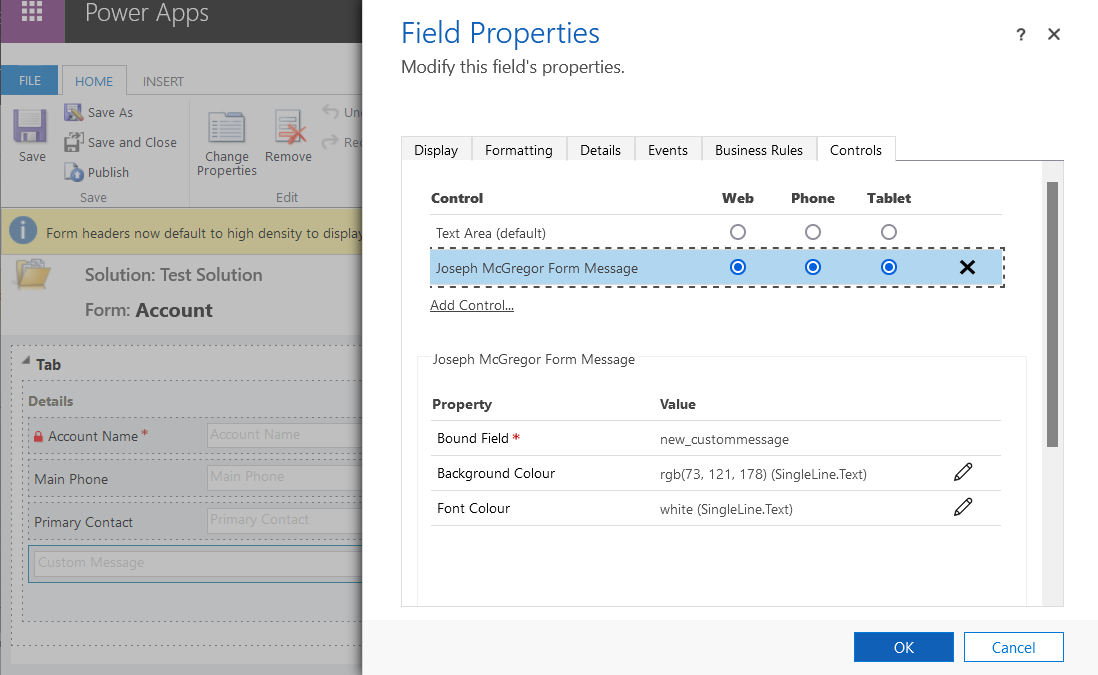
This screenshot shows a field Custom Message field configured to use the PCF control

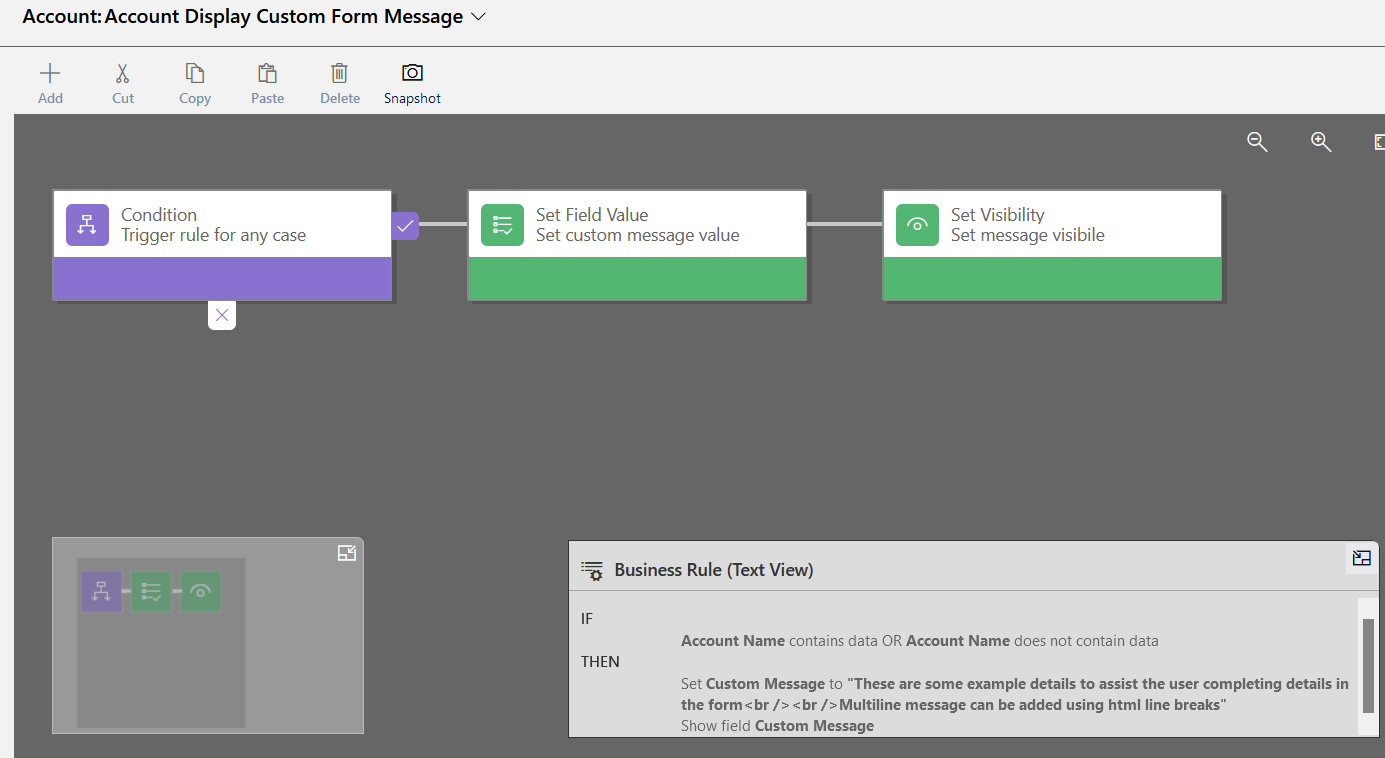
For the purposes of an example message this Business Rule triggers on account forms to populate the HTML into the Custom Message field. Note this gives the flexibility to display contextual messages with relevant field information

This screenshot shows the PCF control displaying a message on the quick create form. As you can see this gives extra flexibility in displaying information to the user than standard configurations

If you have any questions on the implementation or use of this PCF control feel free to comment

Workflow Scheduler Solution – View Notification

This post is part of a series documenting features of the workflow scheduler solution. For details of the workflow scheduler solution click here

The View Notification type sends an email when a system view is returning results. The idea is the view will define records which need to be actioned by users, and this feature will notify them. The feature can also be configured to group the notifications by record owner or send all results to a specific email address in a queue record

I’ll go through an example sending daily notifications of cases which have passed their resolve by date

To do this we need to perform 2 tasks

  1. Create a system view for overdue cases
  2. Create a workflow task to run every morning polling the view for overdue cases

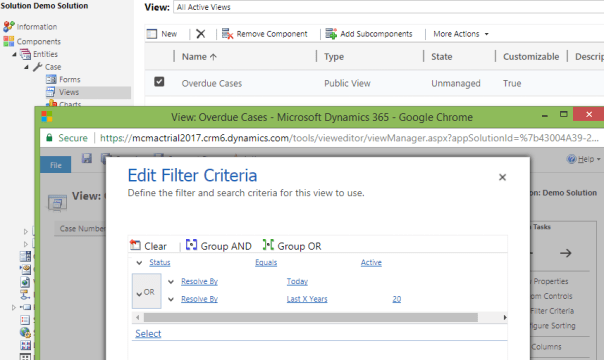
This screenshot displays the a system view which I have created for this scenario

WorkflowScheudlerNotificationView

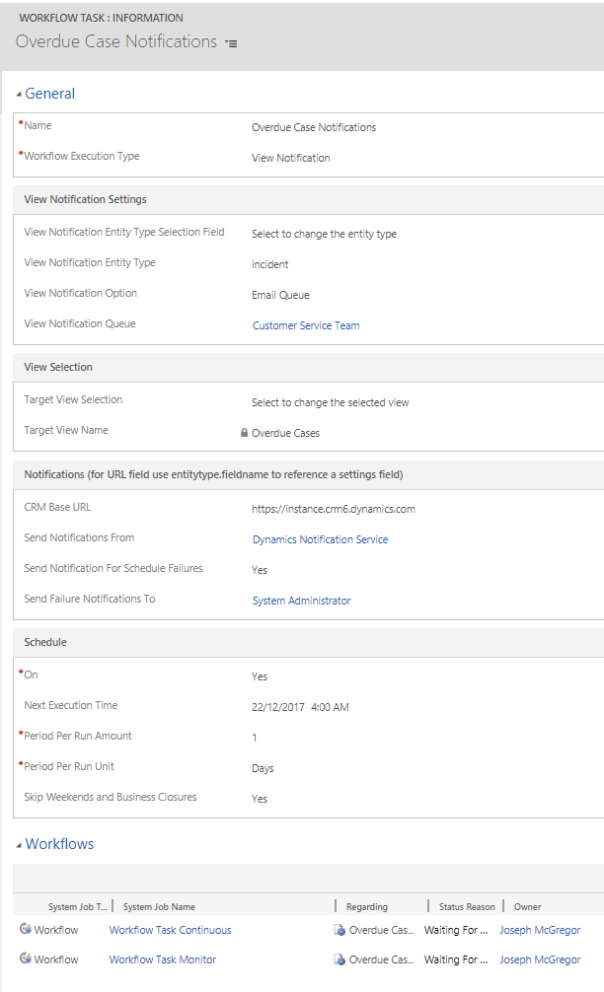
Now I’ve created the view I need to create the workflow task for the notification. The screenshot below displays this example workflow task

  • Workflow Execution Type = View Notification
  • View Notification Type = Email Queue – with the specific Queue then selected
  • View Notification Entity Type = incident – with the target view then selected
  • CRM Base URL is used to populate hyperlinks in the notification emails. This must be populated for the notification email to include hyperlinks to open records. Either put the explicit URL in, or if there is a settings entity with a field containing the URL this may be reference by entering a reference in the pattern “new_settingsentitytype.new_urlfield”. This is sometimes a better option when deploying multiple workflow tasks between non-production and production environments
  • In the Schedule section it is then configured to run once per day
WorkflowSchedulerExampleTask.png

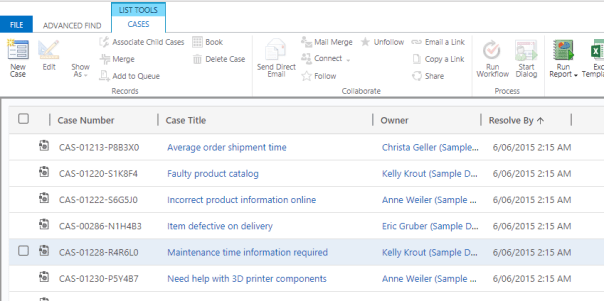
I’ll now verify the notification email. This view shows sample Cases returned by my view which I expect to be included in the notification email

WorkflowScheudlerNotificationViewResults.png

To immediately trigger the process to run workflow I open the workflow task record and set the “Next Execution Time” to any date time in the past

After a few moments the email is created as shown in this advanced find result

WorkflowScheudlerNotificationViewNotificationEmail.png

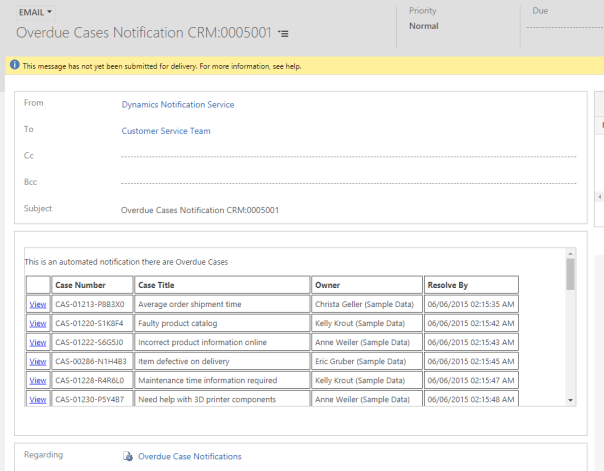
Opening the email ee the contents include a table listing the overdue cases along with a hyperlink to open each of the offending cases

WorkflowScheudlerNotificationViewNotificationEmailContent.png

Note there is the option to send an email to each owning user, rather than sending everything to a single queue email address. So we could for instance have adjusted this example to send the emails to owners of these case records

And with that the work is done for this example

Workflow Scheduler Solution – Target View Results

This post is part of a series documenting features of the workflow scheduler solution. For details of the workflow scheduler solution click here

The Target Per View Result type runs a workflow against results returned by a system view. The idea is a view will define records which need some automated action, and this feature will periodically check for results of the view, and when there are any it will run workflows against them to perform that action

I’ll give an example. For my example we have a custom record type called license. When the license passes the “End Date” it needs to automatically get ‘deactivated’

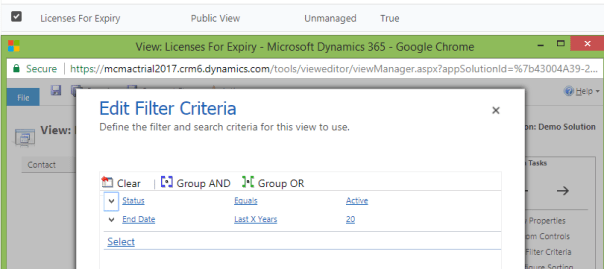
First for this scenario we need to create a view to identify the records in the relevant state. This screenshot displays the example view

WorkflowSchedulerSpawningView.png

Additionally to the view I need to create a workflow to execute on the target records. The screenshot below shows the example workflow for this scenario

  • Set the workflow to run against the target type (in this case License)
  • Set the workflow as asynchronous (run this workflow in the background)
  • Set the workflow as On Demand (as an on demand process)
  • Set the scope to organisation to run against all records
  • Ensure none of the start when options are set and the workflow is only set to run on demand
WorkflowSchedulerSpawningWorkflow

This screenshot displays the example workflow task we then create to implemented the feature scenario. Main points are

  • Workflow Execution Type = Target Per View Result
  • Target Workflow = The workflow created earlier
  • Target View = The View Created Earlier
  • In the Schedule Section configured as once a day
WorkflowSchedulerExampleSpawnTask

Okay now to verify it works. First I create a test record and verify it is returned in the view

WorkflowSchedulerSpawningViewResults.png

To manually trigger the workflow open the workflow task record and set “Next Execution Time” to any date time in the past. A few moments after I’ve done so, as expected the license record disappeared from the target view and appeared in the inactive licenses view

So my example worked and with that I am done. If you have any questions about this feature feel free to post a question and I’ll try to provide an answer

Code Snippet – Change Calendar Start Date

Recently I created a Customer Service Schedule Calendar where I had to calculate durations for work hours including those prior to the date I created the Calendar

To my dismay I discovered the TimeBlocks returned by the ExpandCalendarRequest only started at the time the Calendar was created and no earlier. This meant calculations for work hours prior to the date were not counted

Upon investigation turns out a field Start date within the Calendar Rules for the calendar are what restrict this period for the calendar. The C# script below updated this to earlier in the Calendar Rules and fixed my problem

//replace this with your calendar id
var calendarId = new Guid("5CD816C1-FB2D-EB11-A813-000D3A569254");

var startDate = new DateTime(1910, 1, 1, 0, 0, 0, DateTimeKind.Utc);
var calendar = xrmService.Retrieve("calendar", calendarId);
var calendarRules = calendar["calendarrules"] as EntityCollection;
foreach (var calendarRule in calendarRules.Entities)
{
    calendarRule["starttime"] = startDate;
}
xrmService.Update(calendar);

How to Create a DataGrid with Multiple Field Types in XAML WPF

And now for something completely different

This article details how to code a DataGrid in XAML / WPF to dynamically generate columns with different data entry types

This problem took me a while to gather the different aspects of when attempting to minimise User Interface code in a WPF framework. Due to this a basic sample could be beneficial to others needing to solve the same problem

Sample code referred to in this article is in GitHub here

Model

For this example I have created a basic type with an enumerable property. The enumerated type contains a string and boolean property for the purposes of having different data types

With MVVM, XAML code behind, and a bit of reflection we will have the User Interface generate a grid with the correct data entry types for the enumerated property. In this example the View and View Model will have no knowledge of these concrete data types so the theory is the pattern may be reused for grid data entry of any type

This screenshot shows the type I will use

DynamicsGridModelTypes.png

ViewModel

Deciding the ViewModel classes just involves logically breaking down the Grid structure. A Grid has many Rows. A Row has many Fields which may be of a different type. These are the main classes we require

  1. DataGridViewModel – this is the type we will bind the DataGrid. It contains an enumerable of GridRowViewModel
  2. GridRowViewModel – this is the type bound for each row in the DataGrid. It contains an enumerable of FieldViewModelBase
  3. FieldViewModelBase – this is the base type bound to each column
  4. StringFieldViewModel – this is the concrete type for a string property  bound to a string column
  5. BooleanFieldViewModel – this is the concrete type for a boolean property  bound to a boolean column

The main parts of the implementation of these can be summed up as

  • Inject an object instance into the DataGridViewModel
  • Using reflection populate the Grid rows with each object in the enumerable property
public DataGridViewModel(object instance, string propertyForGrid)
{
    Instance = instance;
    PropertyForGrid = propertyForGrid;

    Rows = new ObservableCollection<GridRowViewModel>();
    //read the enumerable property and load it into the Rows
    var propertyValue = Instance
        .GetType()
        .GetProperty(propertyForGrid)
        .GetGetMethod()
        .Invoke(Instance, new object[0]);
    var enumerable = ((IEnumerable)propertyValue);
    foreach (var item in enumerable)
    {
        Rows.Add(new GridRowViewModel(item));
    }

    AddButtonCommand = new MyCommand(AddRow);
}
  • In each Grid Row object use reflection to determine the property types of the object. For each property create a new instance of the correct FieldViewModel
private void CreateFieldViewModels()
{
    var fields = new ObservableCollection<FieldViewModelBase>();
    var type = Instance.GetType();
    foreach(var property in type.GetProperties())
    {
        if(property.PropertyType == typeof(bool))
        {
            fields.Add(new BooleanFieldViewModel(property.Name, Instance));
        }
        else
        {
            fields.Add(new StringFieldViewModel(property.Name, Instance));
        }
    }
    _fields = fields;
}
  • The GridRow also has an indexer property. This is required for the cell columns to bind to the FieldViewModel for their property (e.g. Row[“PropertyName”])
public FieldViewModelBase this[string fieldName]
{
    get
    {
        if (Fields.Any(gr => gr.PropertyName == fieldName))
            return Fields.First(gr => gr.PropertyName == fieldName);
        return null;
    }
    set { throw new NotImplementedException(); }
}
  • Each FieldViewModel has a get/set property bound to the actual objects property value
public object ValueObject
{
    get
    {
        return Instance
            .GetType()
            .GetProperty(PropertyName)
            .GetGetMethod()
            .Invoke(Instance, new object[0]);
    }
    set
    {
        Instance
            .GetType()
            .GetProperty(PropertyName)
            .GetSetMethod()
            .Invoke(Instance, new object[] { value });
    }
}

For more detail see the source code

View

Okay so this is the guts of what this article is about. The 2 main components which I needed to solve this problem are

  1. Implementations of DataGridBoundColumn for each field type we require
  2. Some code behind to add these into the Columns property of a DataGrid bound to the relevant FieldViewModel of the GridRow

Each DataGridBoundColumn also needs to reference a user control which contains the xaml to display for that column type

These are the classes we require

  1. DynamicGrid- this is a user control containing the DataGrid. It binds to the DataGridViewModel. The DataGrid’s items are bound to the GridRowViewModel’s
  2. GridBooleanFieldView – this is a user control containing a checkbox bound to the BooleanFieldViewModel
  3. StringBooleanFieldView – this is a user control containing a textbox bound to the StringFieldViewModel
  4. GridBooleanColumn – this is an implementation of DataGridBoundColumn. It tells the grid to use GridBooleanFieldView for cells in that column
  5. StringBooleanColumn – this is an implementation of DataGridBoundColumn. It tells the grid to use GridStringFieldView for cells in that column

This is the DynamicGrid view. This binds to the DataGridViewModel. For simplicity I only have an add button and a DataGrid

<UserControl x:Class="SampleDynamicGridWithMultipleFieldTypes.View.DynamicGrid"
             xmlns="http://schemas.microsoft.com/winfx/2006/xaml/presentation"
             xmlns:d="http://schemas.microsoft.com/expression/blend/2008"
             xmlns:x="http://schemas.microsoft.com/winfx/2006/xaml"
             xmlns:mc="http://schemas.openxmlformats.org/markup-compatibility/2006"
             mc:Ignorable="d" 
             d:DesignHeight="450" d:DesignWidth="800">
    <UserControl.Resources>
        <Style x:Key="CenterGridHeaderStyle" TargetType="DataGridColumnHeader">
            <Setter Property="HorizontalContentAlignment" Value="Center"/>
        </Style>
    </UserControl.Resources>
    <Grid>
        <Grid.RowDefinitions>
            <RowDefinition Height="Auto" />
            <RowDefinition Height="*" />
        </Grid.RowDefinitions>
        <Button
            HorizontalAlignment="Left"
            Width="100"
            Grid.Row="0"
            Command="{Binding AddButtonCommand}"
            >
            Add Row
        </Button>
        <DataGrid
            ColumnHeaderStyle="{StaticResource CenterGridHeaderStyle}"
            Grid.Row="1"
            Name="XamlDataGrid"
            ItemsSource="{Binding Rows}"
            CanUserAddRows="False"
            AutoGenerateColumns="False"
        >
        </DataGrid>
    </Grid>
</UserControl>

Generating the columns can be summed up as

  • When the DataContext is set on the DynamicGrid run some code behind to populate the Columns on the DataGrid
  • Bind each cell to the getter/setter of the row object’s relevant FieldViewModel property
private void DynamicGrid_DataContextChanged(object sender, DependencyPropertyChangedEventArgs e)
{
    if (ViewModel != null)
    {
        var mainType = ViewModel.Instance.GetType();
        var propertyForGrid = mainType.GetProperty(ViewModel.PropertyForGrid);
        var typeForGrid = propertyForGrid.PropertyType.GenericTypeArguments[0];
        //iterate each property in the type enumerated in the grid
        foreach (var gridColumnProperty in typeForGrid.GetProperties())
        {
            //Binding for the column to the property indexer in our GridRow
            var cellBinding = new Binding
            {
                Path = new PropertyPath(string.Concat("[", gridColumnProperty.Name, "]")),
                Mode = BindingMode.TwoWay
            };
            //Create the column for the type of property
            DataGridColumn dataGridField;
            if (gridColumnProperty.PropertyType == typeof(bool))
            {
                dataGridField = new GridBooleanColumn()
                {
                    Binding = cellBinding
                };
            }
            else
            {
                dataGridField = new GridStringColumn()
                {
                    Binding = cellBinding
                };
            }
            //Column header label & width
            dataGridField.Header = gridColumnProperty.Name;
            dataGridField.Width = new DataGridLength(200, DataGridLengthUnitType.Pixel);
            //Add to the column collection of the DataGrid
            XamlDataGrid.Columns.Add(dataGridField);
        }
        //Bind the ItemsSource of the DataGrid to our Rows
        var dataGridBinding = new Binding
        {
            Path = new PropertyPath(nameof(DataGridViewModel.Rows)),
            Mode = BindingMode.TwoWay
        };
        XamlDataGrid.SetBinding(ItemsControl.ItemsSourceProperty, dataGridBinding);
    }
}
  • When a row is added create a new object of the relevant type and encapsulate it in a new GridRowViewModel. Add this object to the collection of grid rows, as well as the target objects enumerable
private void AddRow()
{
    var rowPropertyType = Instance
        .GetType()
        .GetProperty(PropertyForGrid)
        .PropertyType
        .GenericTypeArguments[0];
    var newInstanceForRow = Activator.CreateInstance(rowPropertyType);
    var gridRow = new GridRowViewModel(newInstanceForRow);
    Rows.Add(gridRow);

    RefreshGridRowsIntoObjectEnumerable(rowPropertyType);
}

private void RefreshGridRowsIntoObjectEnumerable(Type rowPropertyType)
{
    //this outputs an object of type object[]
    var rowInstances = Rows.Select(g => g.Instance).ToArray();
    //this casts the array above to our desired type
    var typedEnumerable = typeof(Enumerable)
        .GetMethod(nameof(Enumerable.Cast), new[] { typeof(IEnumerable) })
        .MakeGenericMethod(rowPropertyType)
        .Invoke(null, new object[] { rowInstances });
    //this forces enumeration of the cast array
    typedEnumerable = typeof(Enumerable)
        .GetMethod(nameof(Enumerable.ToArray))
        .MakeGenericMethod(rowPropertyType)
        .Invoke(null, new object[] { typedEnumerable });
    //now we have an enumerated array of the correct type
    //there will be no error setting it to the property on our target object
    Instance.GetType()
        .GetProperty(PropertyForGrid)
        .GetSetMethod()
        .Invoke(Instance, new[] { typedEnumerable });
}

Of course we also have the user controls for the fields. I won’t copy them in here as they are just a bound checkbox and textbox

For the purposes of this sample my MainWindow contains this

<Window x:Class="SampleDynamicGridWithMultipleFieldTypes.MainWindow"
        xmlns="http://schemas.microsoft.com/winfx/2006/xaml/presentation"
        xmlns:d="http://schemas.microsoft.com/expression/blend/2008"
        xmlns:x="http://schemas.microsoft.com/winfx/2006/xaml"
        xmlns:mc="http://schemas.openxmlformats.org/markup-compatibility/2006"
        xmlns:view="clr-namespace:SampleDynamicGridWithMultipleFieldTypes.View"
        mc:Ignorable="d"
        Title="MainWindow" Height="450" Width="800">
    <Grid>
        <view:DynamicGrid DataContext="{Binding}" />
    </Grid>
</Window>

And is initialised in code behind with a sample object to bind

    public partial class MainWindow : Window
    {
        public MainWindow()
        {
            InitializeComponent();
        }

        protected override void OnContentRendered(EventArgs e)
        {
            base.OnContentRendered(e);

            var myInstance = new MyDataGridType();
            myInstance.MyGridRows = new[]
            {
                new MyGridRowType() { MyStringField = "Initial Row 1" },
                new MyGridRowType() { MyStringField = "Initial Row 2", MyBooleanField = true },
                new MyGridRowType() { MyStringField = "Initial Row 3" },
            };
            var viewModel = new DataGridViewModel(myInstance, nameof(MyDataGridType.MyGridRows));
            DataContext = viewModel;
        }
    }

F5 and the magic happens. See the 3 items have loaded in the object initialised above and the correct control types are displayed in the columns. Clicking Add Row a new object is loaded into the grid, and if you inspect the source object you can see it has also added to our source object

DataGrid F5

For more detail see the source code

So that sums it up. Obviously this example is very basic and only has 2 field types, but running with this idea the User Interface can use the same DataGrid solution for any data type meaning minimal effort generating the User Interface for new data types added into the application

If you are interested in a more thorough implementation see the source code in my User Interface framework here. Be warned though it has been extended to many more data types, abstraction from the data source, styles, validation, on change triggers, custom functions, sorting etc. so has a significant amount more code to go through when connecting the pieces together

That completes this example. Over and out
How to Create a Multi Project Solution Template in Visual Studio

This article details tasks to create a multi project solution template in Visual Studio

I use a solution template in my Visual Studio extension containing 4 projects and a connection already configured for connecting and deploying to dynamics. This gets me up and running quickly and provides various class libraries immediately to reduce coding effort

Getting a solution template with more than 1 project required some learning so this article documents the process. So let’s go through it

Create Project Template

The first step is creating a project template in Visual Studio. The project created by default will be for a solution with only one project, but we will subsequently modify its configuration to reference multiple projects

This is the option in the new Project Menu in Visual Studio 2017. You may need Visual Studio Extensibility installed for Visual Studio

New Project Template

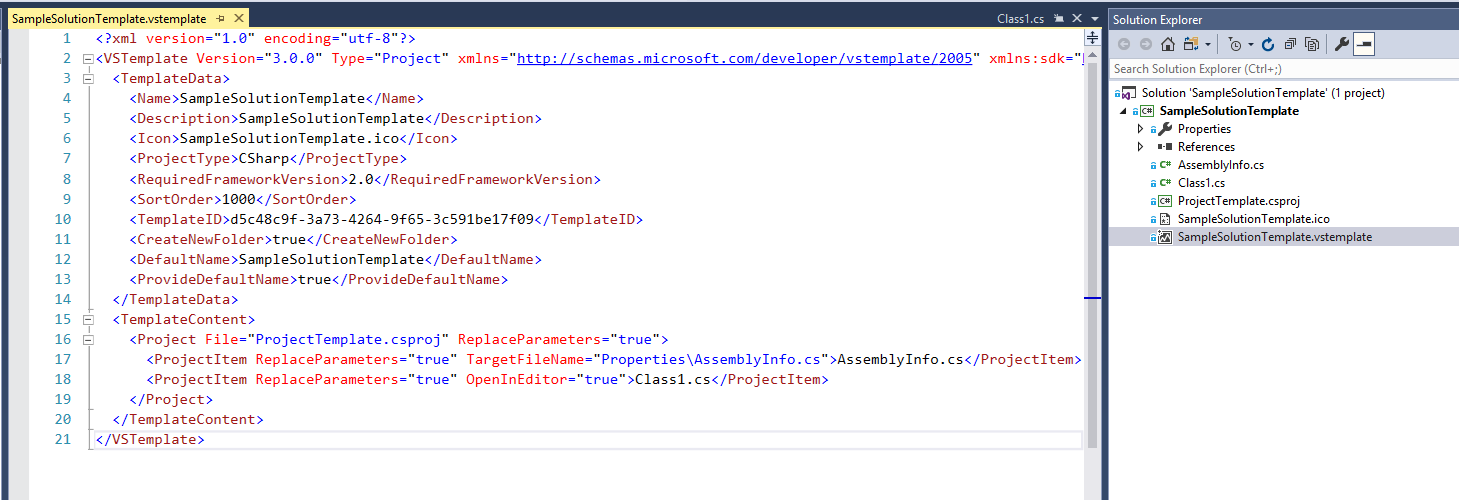
This screenshot shows the default project created by Visual Studio along with its .vstemplate file

Note

  1. Type = Project – we will change this to ProjectGroup
  2. TemplateContent contains one Project Node – we will change this to a ProjectCollection and add ‘child’ project templates within the solution directory

New Project Template Project

Create Child Projects From Unzipped Project Templates

Next step is to export the projects we want inside the solution as project templates, unzip them, then add them within the directory of our solution template. For the purpose of this article I will add 2 basic new class library projects created by Visual Studio

This screenshot demonstrates. I have a solution with 2 basic class libraries open. To initiate a template export I select Export Template in the Project menu

Export Template.png

Ensure Project Template selected along with the relevant project

Export Template Next.png

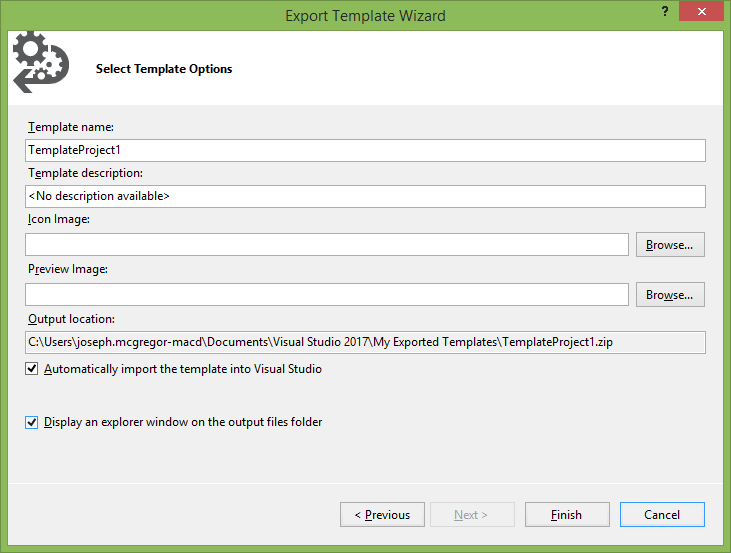
Ensure “Display in explorer window…” is checked then click Finish

Export Template Finish.png

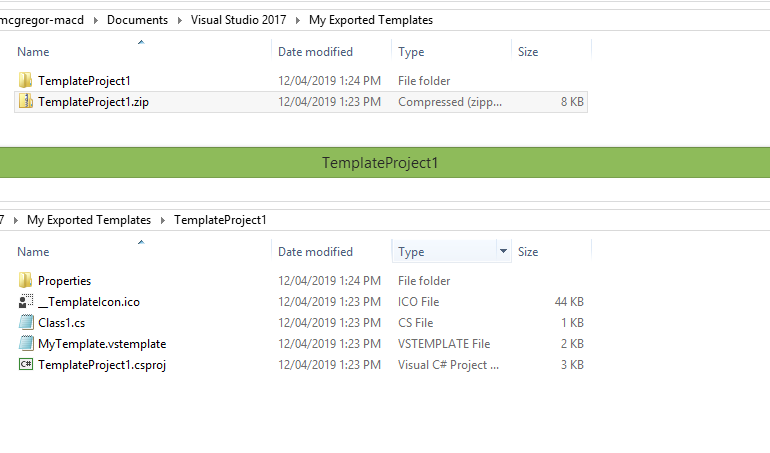
Visual Studio will create a zip file for the template content and open the folder containing the zip. Unzip then copy the unzipped folder into the directory of our solution/project template created earlier. This screenshot shows the unzipped folder to be copied

Export Template Zip.png

Repeat this for the other project

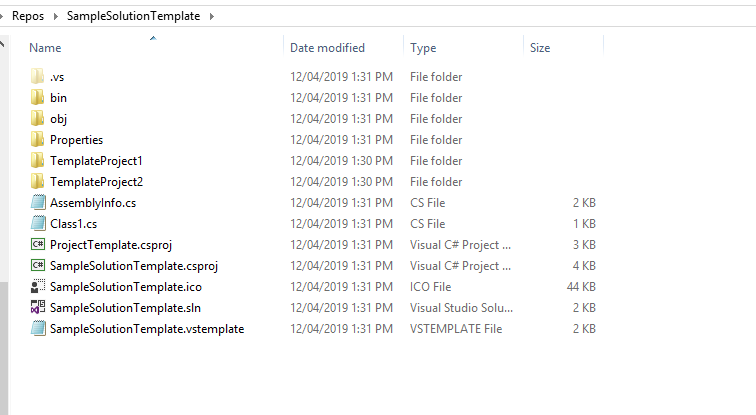
This screenshot shows the solution directory having copied in the unzipped project templates

New Solution Template Directory With Projects.png

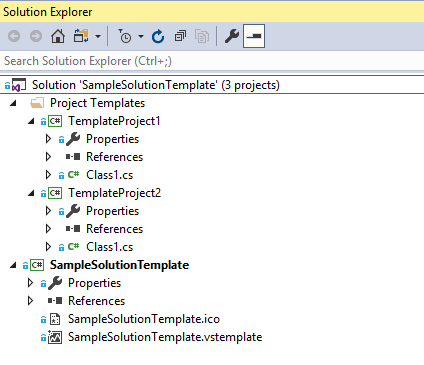
At this point we add the child projects into the solution. This is done by using the Add -> Existing Project menu option and selecting the .csproj file within the unzipped template folders. Here I add them in a solution folder named Project Templates

New Project Template Project Added Child Projects.png

Note we should configure these projects to not build as part of the solution configuration. The template projects contain various placeholders within their files which cause sbuilds to fail for them

To configure these properties right-click the solution in solution explorer and select properties. Then uncheck build for the projects and Apply

New Project Template Project Configuration.png

Change our Project Template to a Project Group Template

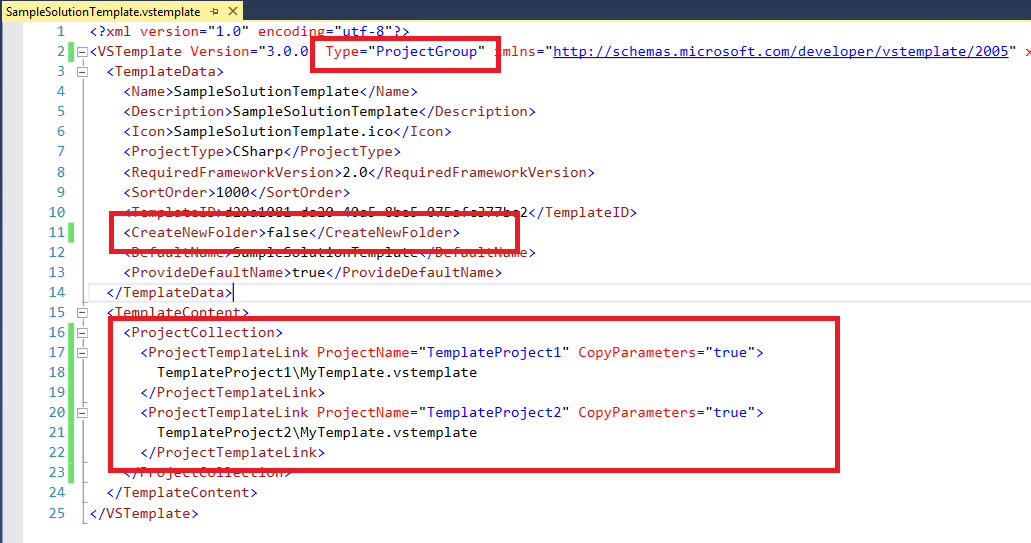
The remaining task is to reconfigure the .vstemplate in the main template project. This screenshot highlights changes. The main 2 being

  1. Changing the Type to a project group (i.e a solution with multiple projects)
  2. Changing the template content to a collection of projects referencing the unzipped templates we earlier copied

New Solution Template Reconfigure vstemplate.png

At this stage we may also delete the superfluous files which were created as part of the default project template. This is the result

Basic Mutli Project Solution Template Final.png

Build project and copy zip output to Templates folder

Okay now lets build our SampleSolutionTemplate. the .zip output is shown in the screenshot below. This is what Visual Studio uses for creating a new solution for the template

Basic Mutli Project Solution Template Final Output

To have this available in visual studio copy it into the Templates folder. This templates folder shown is the personal templates folder in My Documents

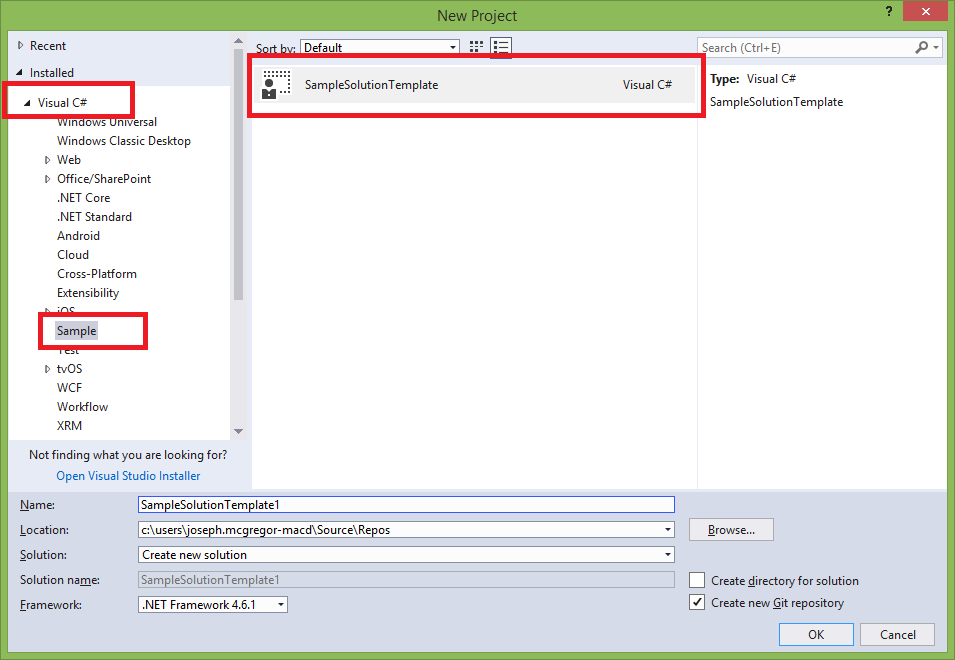
Note I have put it in the folder path Visual C#/Sample which drives where it is displayed in the new Project menu

Basic Mutli Project Solution Template VS Folder.png

Create new Solution from Template

Okay let’s do it. Open a new instance of Visual Studio then click File -> New Project

In the Visual C# navigation there is a new Sample option which contains my Solution Template

Create solution from template.png

When created the new Project contains the desired projects

Solution Created From Template.png

Obviously this is a basic example but if frequently working on the same software platform having a solution template saves significant set up time when starting on new work

Also note when solution templates are included in Visual Studio extensions further manipulation may be done in ‘Wizards’ when provisioning the projects. Options include forms for capturing project data, adding dynamic content for tokens in the templates and modification/adding items within the solution. An example of this is in my extension JosephM.Xrm.Vsix in the github repository here

If required I have added the sample template created in this article to a github repository here

That’s all folks. Hope this helps someone

Use Queues to Send Automated Emails

Generally I think this is best practice. In some cases we may want more personal emails sent, and replies to go directly back to users, but this more relates to notifications or other automated emailing scenario such as sending sales documents (invoices for example)

In Microsoft Dynamics mailboxes are created for each queue, as well as each user, which is created in the system

  • User mailboxes will generally be their personal email address, and queue email addresses may be any email address
  • With user mailboxes security is generally relevant, and by default users processes cannot send emails from another user, unless they are granted such permissions. With queue mailboxes security is not so relevant and users processes can send emails from queues, for the most part, without requiring additional privileges for sending emails
  • Each user account, and therefore its mailbox, in the system requires a Dynamics 365 license. A queue, and therefore its mailbox, does not require a Dynamics 365 license
  • In the scenario of automated emails generally we are using a generic email address, not tied to a person/user. We do not want it to consume a license if possible

Based on these points I think using a Queue generally comes out as a clear winner for most automated emailing scenarios