This post is part of a series documenting features of the workflow scheduler solution. For details of the workflow scheduler solution click here
The Target Per View Result type runs a workflow against results returned by a system view. The idea is a view will define records which need some automated action, and this feature will periodically check for results of the view, and when there are any it will run workflows against them to perform that action
I’ll give an example. For my example we have a custom record type called license. When the license passes the “End Date” it needs to automatically get ‘deactivated’
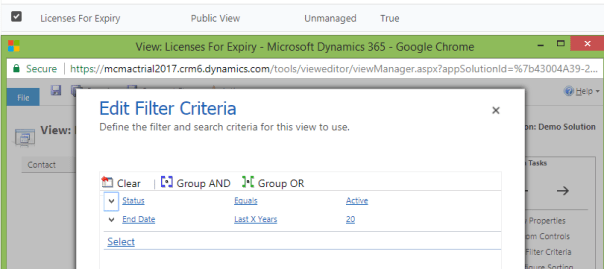
First for this scenario we need to create a view to identify the records in the relevant state. This screenshot displays the example view
Additionally to the view I need to create a workflow to execute on the target records. The screenshot below shows the example workflow for this scenario
- Set the workflow to run against the target type (in this case License)
- Set the workflow as asynchronous (run this workflow in the background)
- Set the workflow as On Demand (as an on demand process)
- Set the scope to organisation to run against all records
- Ensure none of the start when options are set and the workflow is only set to run on demand

This screenshot displays the example workflow task we then create to implemented the feature scenario. Main points are
- Workflow Execution Type = Target Per View Result
- Target Workflow = The workflow created earlier
- Target View = The View Created Earlier
- In the Schedule Section configured as once a day

Okay now to verify it works. First I create a test record and verify it is returned in the view

To manually trigger the workflow open the workflow task record and set “Next Execution Time” to any date time in the past. A few moments after I’ve done so, as expected the license record disappeared from the target view and appeared in the inactive licenses view
So my example worked and with that I am done. If you have any questions about this feature feel free to post a question and I’ll try to provide an answer
 JM SOFTWARE